Upgrade your Qualz.ai workspace – learn how to move from Standard to Professional or Enterprise tier to unlock advanced features, multiple workspaces, and expanded team collaboration.
What is Workspace Plan Upgrade? #
Workspace plan upgrade allows you to move from a lower tier to a higher tier, unlocking additional features, capabilities, and limits. Upgrading gives you access to more workspaces, team members, and research tools.
Available upgrade paths:
- Standard → Professional – Unlock multiple workspaces and advanced features
- Standard → Enterprise – Get enterprise-grade security and unlimited scale
- Professional → Enterprise – Add SSO, compliance, and dedicated support
Why Upgrade Your Workspace? #
Unlock Multiple Workspaces #
Standard limitation: 1 workspace only Professional benefit: Create multiple workspaces for different clients or projects
Expand Team Collaboration #
Standard limitation: Limited member management Professional benefit: Up to 10 members per workspace with advanced roles
Remove Research Limits #
Standard limitations:
- Maximum 2 interviews
- Maximum 2 surveys
Professional benefits:
- Unlimited interviews and surveys
- No research restrictions
Access Premium Features #
Professional exclusive features:
- Priority support
- Advanced analytics
- Dedicated onboarding
- Discounted credit purchases (25% off)
Enterprise exclusive features:
- SSO integration
- GDPR and SOC2 compliance
- Custom workflows
- Dedicated account representative
Step 1: Access Workspace Subscription Plans #
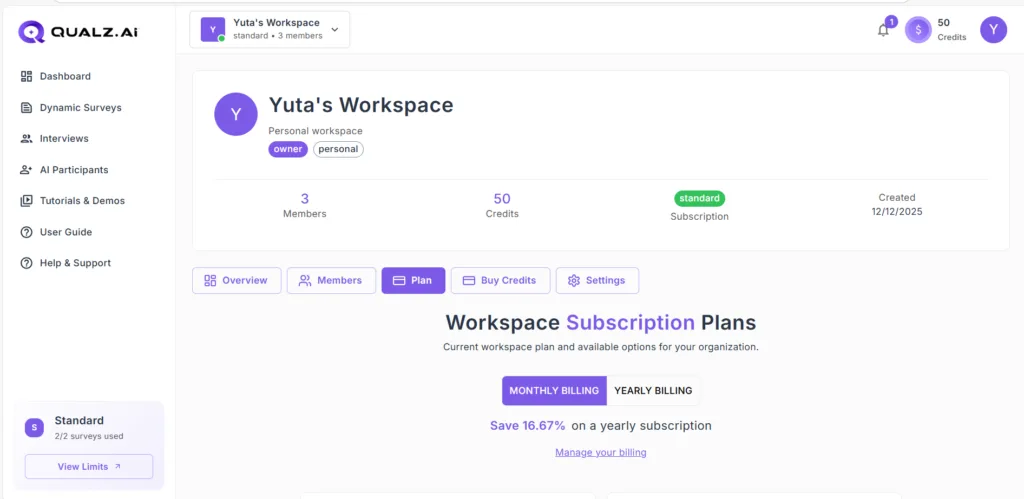
Navigate to your workspace plan management area.
Open Plan Section #
- Click on your workspace name in the top-left corner
- Navigate to workspace overview
- Click the “Plan” tab in the navigation bar
- Or click “Overview” and scroll to subscription section
You’ll see:
- Current workspace tier (Standard, Professional, Enterprise)
- Member count
- Credit balance
- “Workspace Subscription Plans” heading
Step 2: Choose Billing Frequency #
Decide between monthly or yearly billing for Professional tier.
Select Billing Cycle #
Monthly Billing Tab:
- $199.99/month
- Billed monthly
- Cancel anytime
- Monthly credit allocation (2,000 credits)
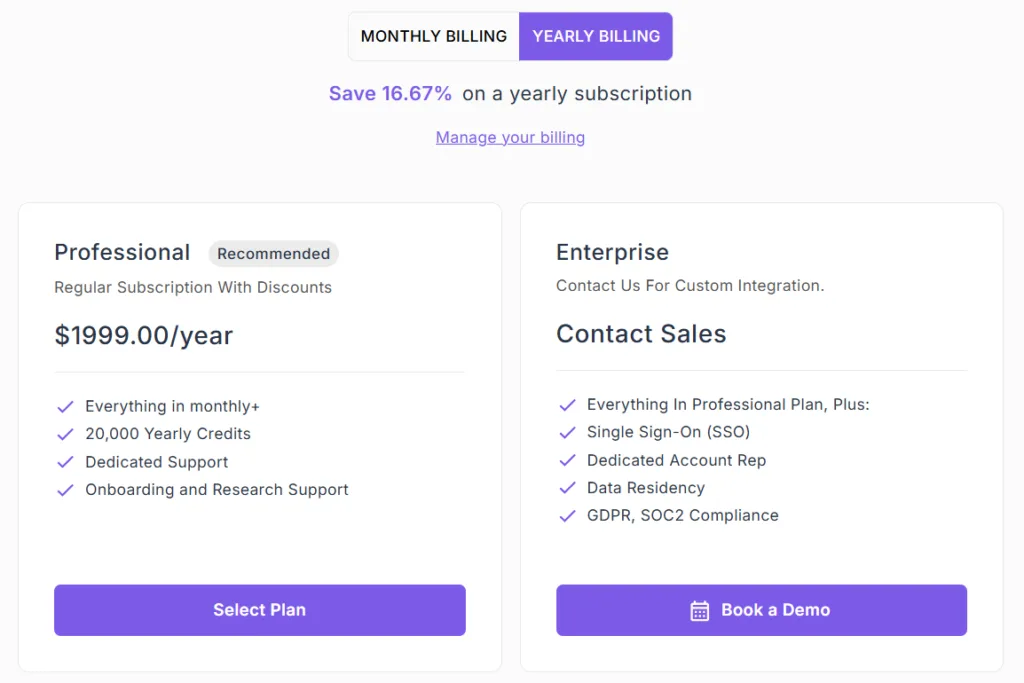
Yearly Billing Tab:
- $1,999.00/year
- Billed annually
- Save 16.67% compared to monthly
- Yearly credit allocation (20,000 credits)
Toggle between tabs:
- Click “MONTHLY BILLING” or “YEARLY BILLING” toggle
- Pricing updates automatically
- Review features for selected billing cycle
Step 3: Click “Select Plan” to Upgrade #
Initiate the upgrade process by selecting your desired plan.
Select Professional Plan #
- Review Professional plan features (monthly or yearly)
- Click the “Select Plan” button
- A confirmation dialog appears
Step 4: Confirm Plan Change #
Review and confirm your upgrade decision.
Confirmation Dialog #
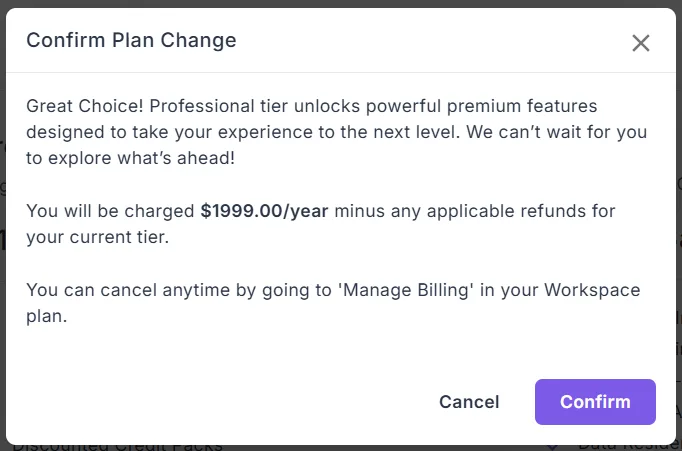
“Confirm Plan Change” modal displays:
Message: “Great Choice! Professional tier unlocks powerful premium features designed to take your experience to the next level. We can’t wait for you to explore what’s ahead!”
Pricing information:
- “You will be charged $1999.00/year minus any applicable refunds for your current tier.”
- (Amount varies based on monthly vs. yearly selection)
Cancellation policy: “You can cancel anytime by going to ‘Manage Billing’ in your Workspace plan.”
Action buttons:
- “Cancel” – Return without upgrading
- “Confirm” – Proceed to payment
Confirm the Upgrade #
- Read the confirmation message carefully
- Note the pricing amount
- Understand cancellation policy
- Click “Confirm” to proceed
Step 5: Complete Payment #
Process payment to finalize your workspace upgrade.
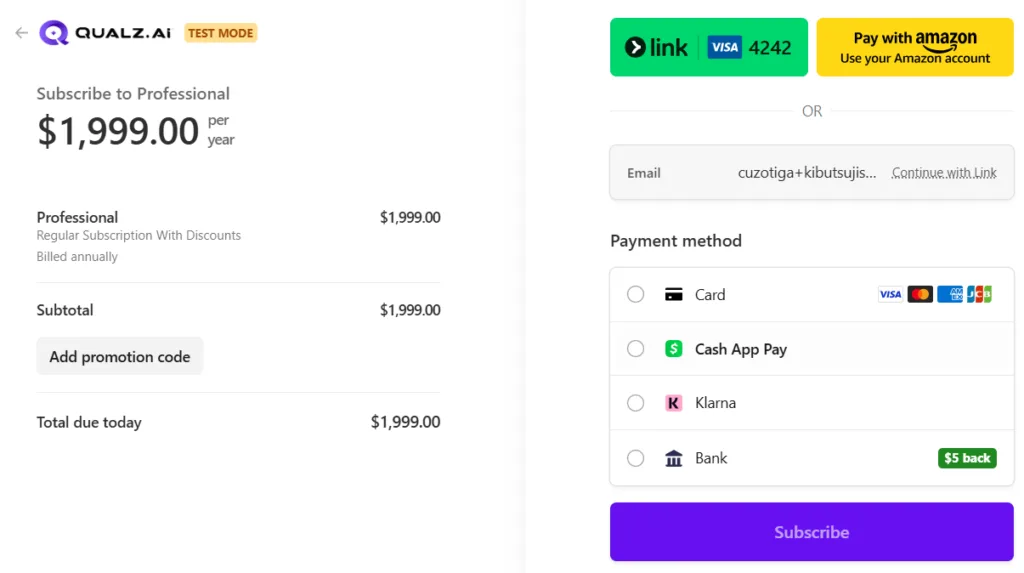
Payment Checkout Page #
Subscription Details:
Subscribe to Professional
- Amount: $1,999.00 (yearly) or $199.99 (monthly)
- Plan: Professional – Regular Subscription With Discounts
- Billing: Billed annually or monthly
Pricing Breakdown:
- Subtotal: $1,999.00 (or $199.99)
- Add promotion code (optional)
- Total due today: $1,999.00 (or $199.99)
Payment Methods Available:
- 💳 Card (Visa, Mastercard, Amex, JCB)
- 💵 Cash App Pay
- Klarna (Buy now, pay later)
- 🏦 Bank ($5 back offer)
Quick Payment Options:
- Link (pay with saved card)
- Amazon Pay (use Amazon account)
Complete Payment #
- Verify the subscription amount
- Select your preferred payment method
- Enter payment details
- Add promotion code if available
- Click “Subscribe” button
- Payment processes securely
Step 6: Upgrade Confirmation #
Receive confirmation that your upgrade was successful.
Success Message #
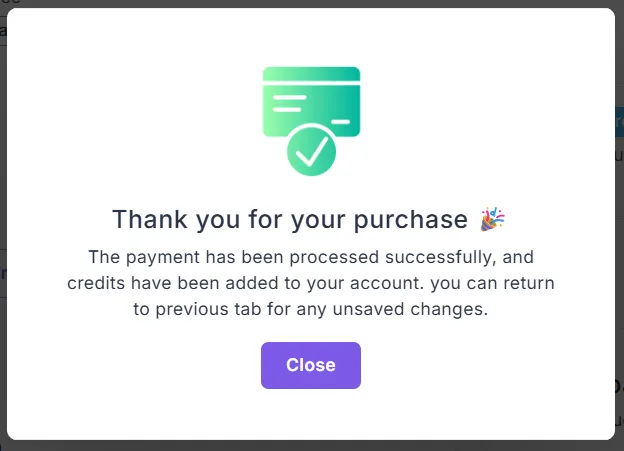
“Thank you for your purchase 🎉”
Confirmation details:
- Green checkmark icon with credit card symbol
- Message: “The payment has been processed successfully, and credits have been added to your account. you can return to previous tab for any unsaved changes.”
- “Close” button to return to workspace