Purchase credits for your Qualz.ai workspace – learn how to buy additional credits when you run out, so you can continue powering your research activities, interviews, surveys, and analyses.
What are Workspace Credits? #
Workspace credits are the currency used to power research activities in Qualz.ai. Credits fund interviews, surveys, AI analyses, and AI participant usage. Each workspace has its own independent credit balance.
Credit pricing: $0.10 USD per credit [ $1 = 10 Credits]
Some important Information Regarding Credits. #
Subscription Credits Expire #
Professional tier credits have expiration dates:
- Monthly plan: 2,000 credits expire at month-end
- Yearly plan: 20,000 credits expire at year-end
Purchased credits never expire – they remain in your account indefinitely.
Professional subscribers get 25% off credit purchases:
Step by Step Instructions to Buy Credits.
Step 1: Access Buy Credits Option #
Open the credit purchase dialog from your workspace.
Navigate to Buy Credits #
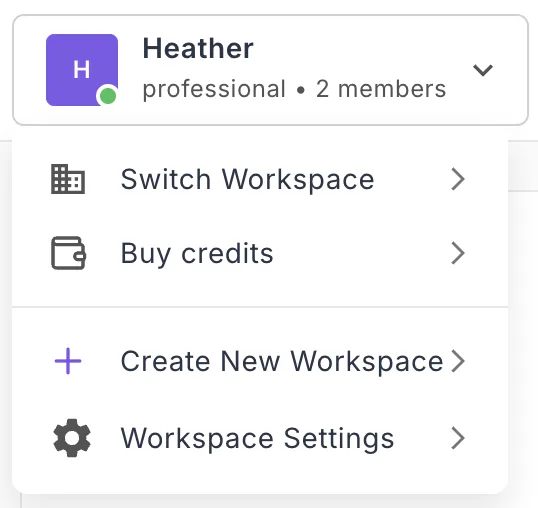
- Click your workspace name in the top-left corner
- A dropdown menu appears showing:
- Current workspace tier
- Member count
- Credit badge (Buy Credits)
- Click “Buy credits” option
Alternative access:
- Navigate to workspace overview
- Click “Buy Credits” tab
- Or click the credit balance indicator in the header
Step 2: Review Current Credit Balance #
Check how many credits you currently have before purchasing.
Buy Credits Dialog Opens #
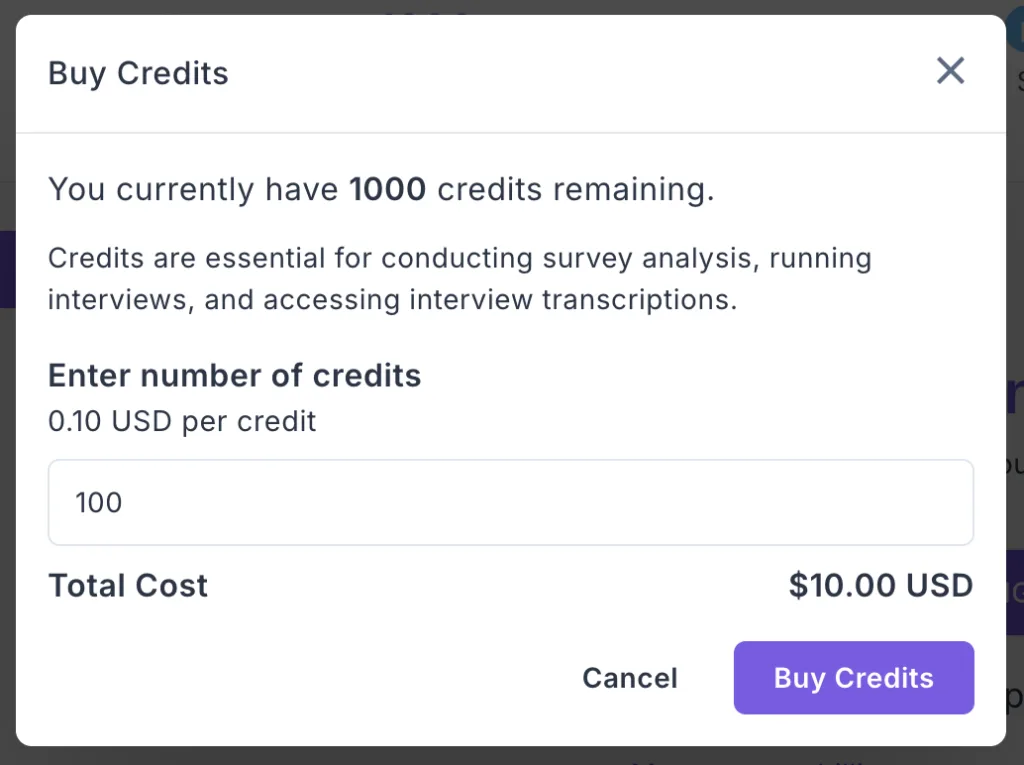
The “Buy Credits” modal displays:
Current Balance Information:
- “You currently have 1000 credits remaining.”
- (Your actual balance will vary)
Credit Usage Information: Credits are required for actions such as data collection (surveys and interviews), analysis, AI participant panels, and more.
This helps you understand:
- How many credits you have now
- What credits are used for
- Whether you need to purchase more
Step 3: Enter Number of Credits to Purchase #
Specify how many credits you want to buy.
Enter Credit Quantity #
“Enter number of credits”
- Credit pricing shown: 0.10 USD per credit
- Input field with up/down arrows. Or just insert the number of credits you want to purchase.
- Default example: 100 credits
- Minimum purchase: typically 100 credits
Step 4: Review Total Cost #
Verify and confirm the total cost before proceeding to payment.
Before clicking Buy Credits:
- ✓ Verify credit quantity is correct
- ✓ Confirm total cost matches expectation
- ✓ Ensure you’re in the correct workspace
Step 5: Click “Buy Credits” to Proceed #
Initiate the payment process by confirming your purchase.
Proceed to Payment #
- Review all details one final time
- Click the “Buy Credits” button (purple button on right)
- Payment checkout page opens
You’re redirected to secure payment processing.
Step 6: Complete Payment #
Process your payment through the secure checkout page.
Payment Checkout Details #
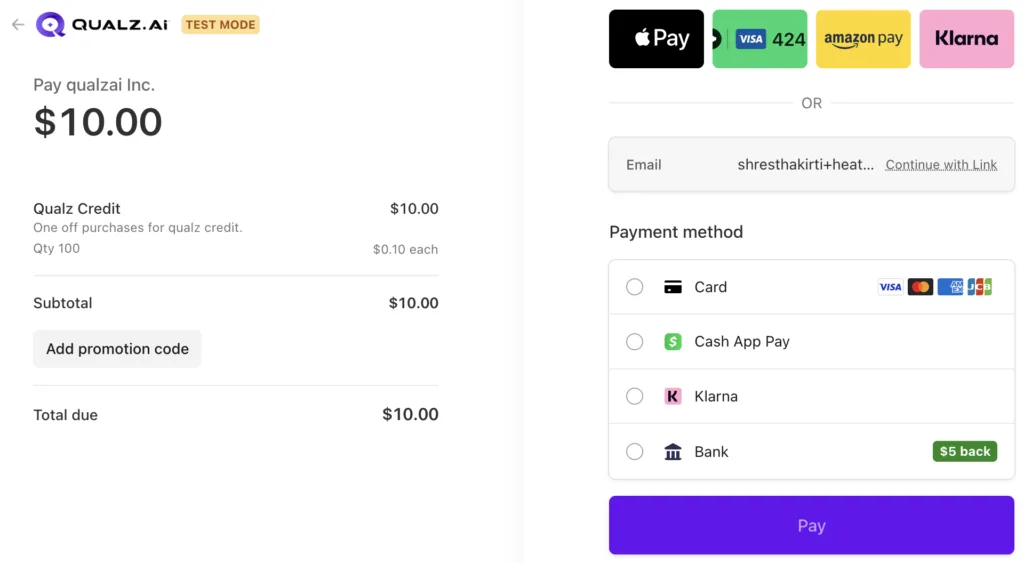
Purchase Summary:
Pay qualzai Inc.
- Amount: $10.00 (or your total)
Order Details:
- Item: Qualz Credit
- Description: “One off purchases for qualz credit”
- Quantity: 100 (your quantity)
- Price per credit: $0.10 each
- Subtotal: $10.00
Promotion Code:
- Optional field: “Add promotion code”
- Apply discounts if available
Total due: $10.00
Select Payment Method #
Available payment options:
- 🍎 Apple Pay (if available on your device)
- 💳 Link (saved payment method)
- 🟡 Amazon Pay (use Amazon account)
- 💕 Klarna (buy now, pay later)
Enter Payment Information #
- Select your preferred payment method
- Enter payment details:
- Card number (if using card)
- Expiration date
- CVV code
- Billing zip code
- Email confirmation field pre-filled
- Review all information
Step 7: Complete Payment Transaction #
Finalize your credit purchase.
Submit Payment #
- Verify all payment details are correct
- Click the “Pay” button (large purple button at bottom)
- Payment processes securely
- Wait for confirmation (typically 2-5 seconds)
Payment security:
- All transactions encrypted
- PCI-compliant processing
- Secure checkout environment
- No payment details stored by Qualz.ai
Step 8: Receive Purchase Confirmation #
Get confirmation that your credits were added successfully.
Success Message #
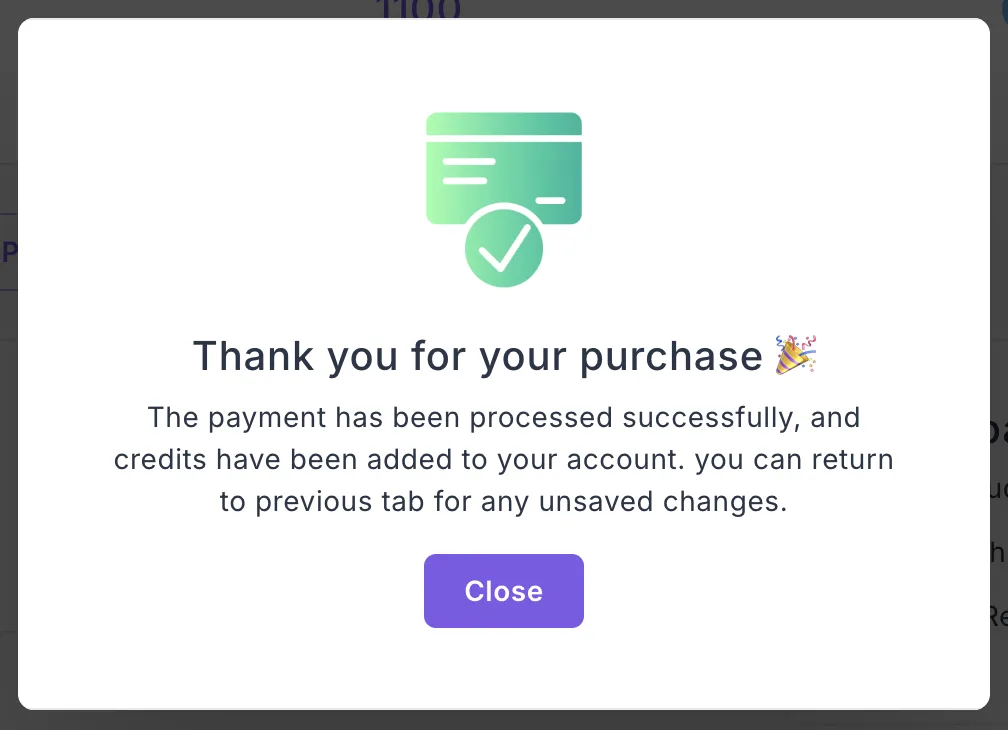
“Thank you for your purchase 🎉”
Confirmation details:
- Green checkmark icon with credit card symbol
- Message: “The payment has been processed successfully, and credits have been added to your account. you can return to previous tab for any unsaved changes.”
- “Close” button to return to workspace
Return to workspace:
- Click “Close” button
- Dashboard refreshes with updated credit balance
- Start using credits for research immediately


