How to Filter AI Participants to Match Your Survey
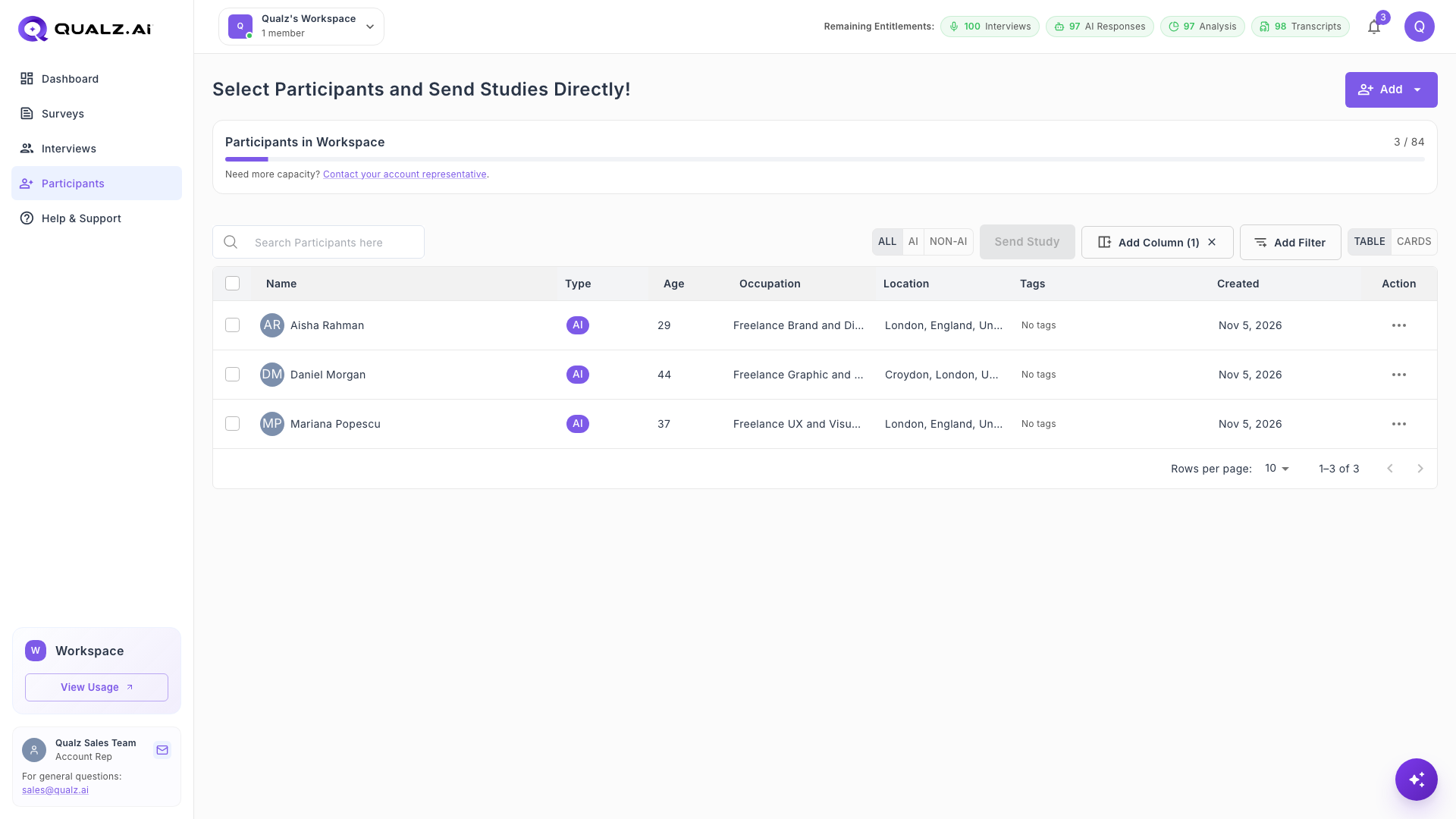
Refine your list of participants so that it matches your survey goals before you send your study. These controls are above the table on the Participants page.
Find Participants Quickly
- Search: Type a name in Search Participants here.
- Type: Click ALL, AI or NON-AI to show only that type of participant.
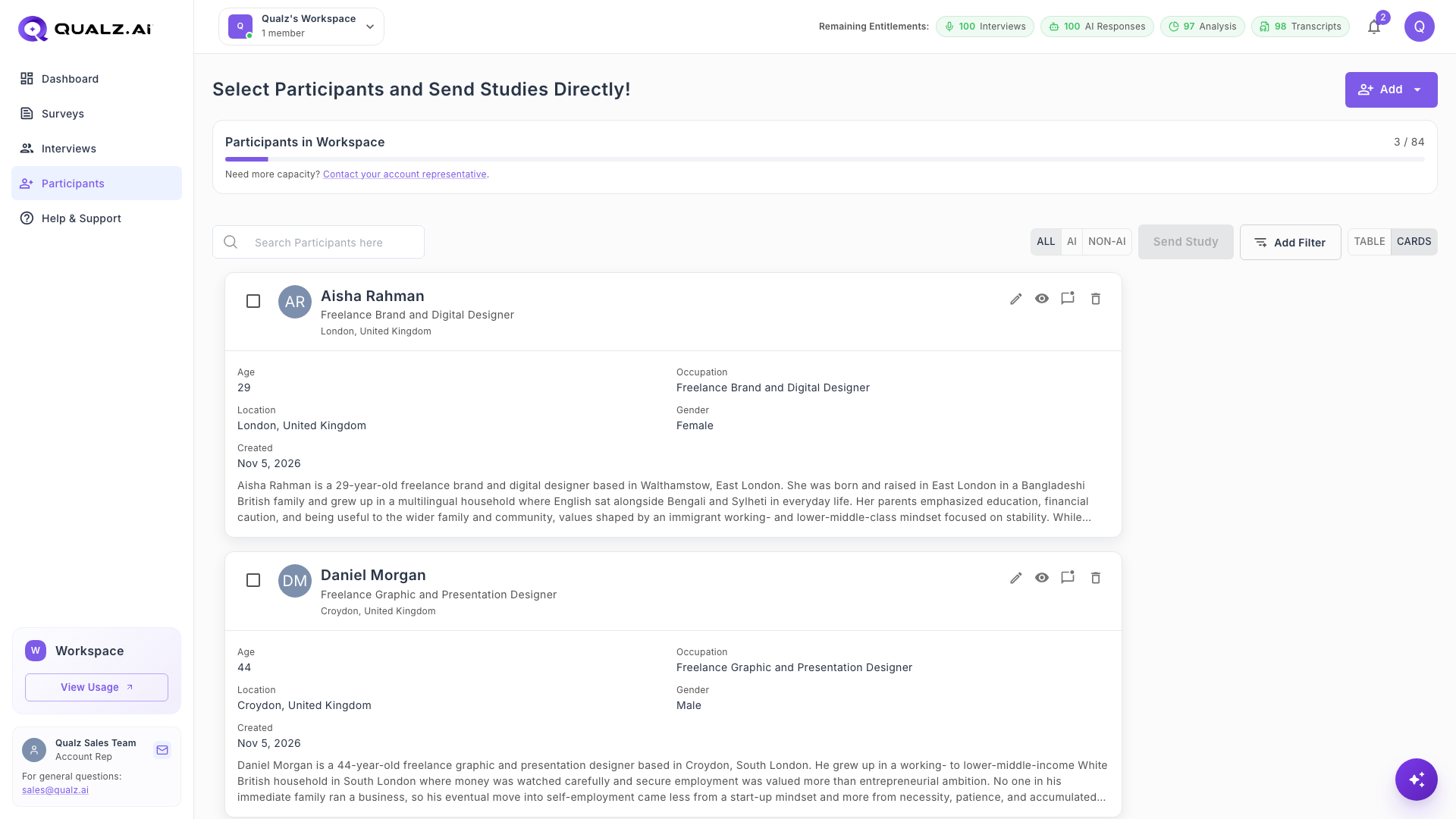
- View: Click TABLE or CARDS to change the layout. Cards also show gender and a summary of the participant's background.
Filter AI Participants by Criteria
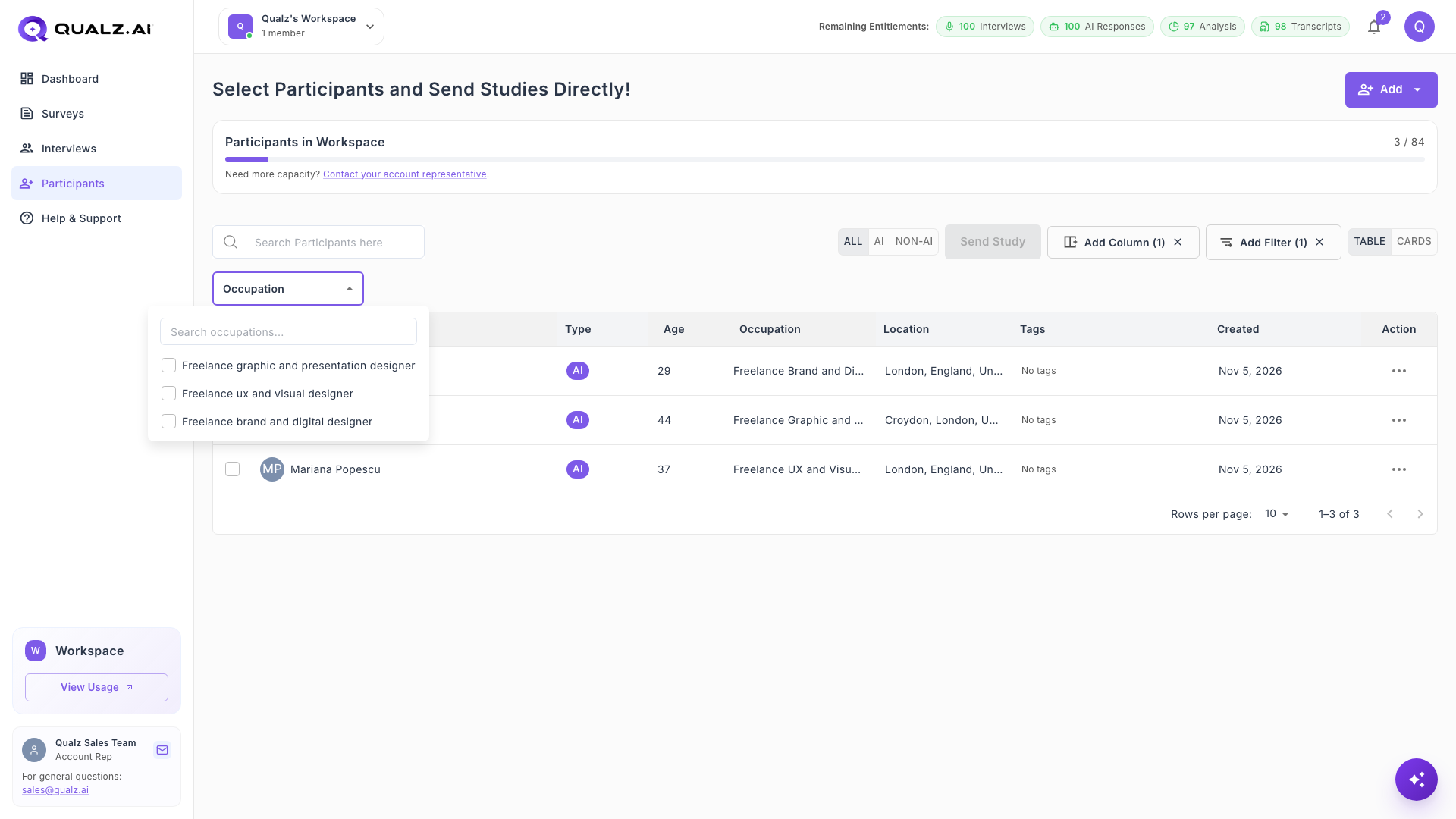
- Click Add Filter and tick the attribute you want: Type, Age, Occupation, Location or Tags.
- A filter appears below the search box. Click it and tick the values you want. You can search within the values.
- To remove your filters, click the × on the Add Filter button.
Add Custom Columns
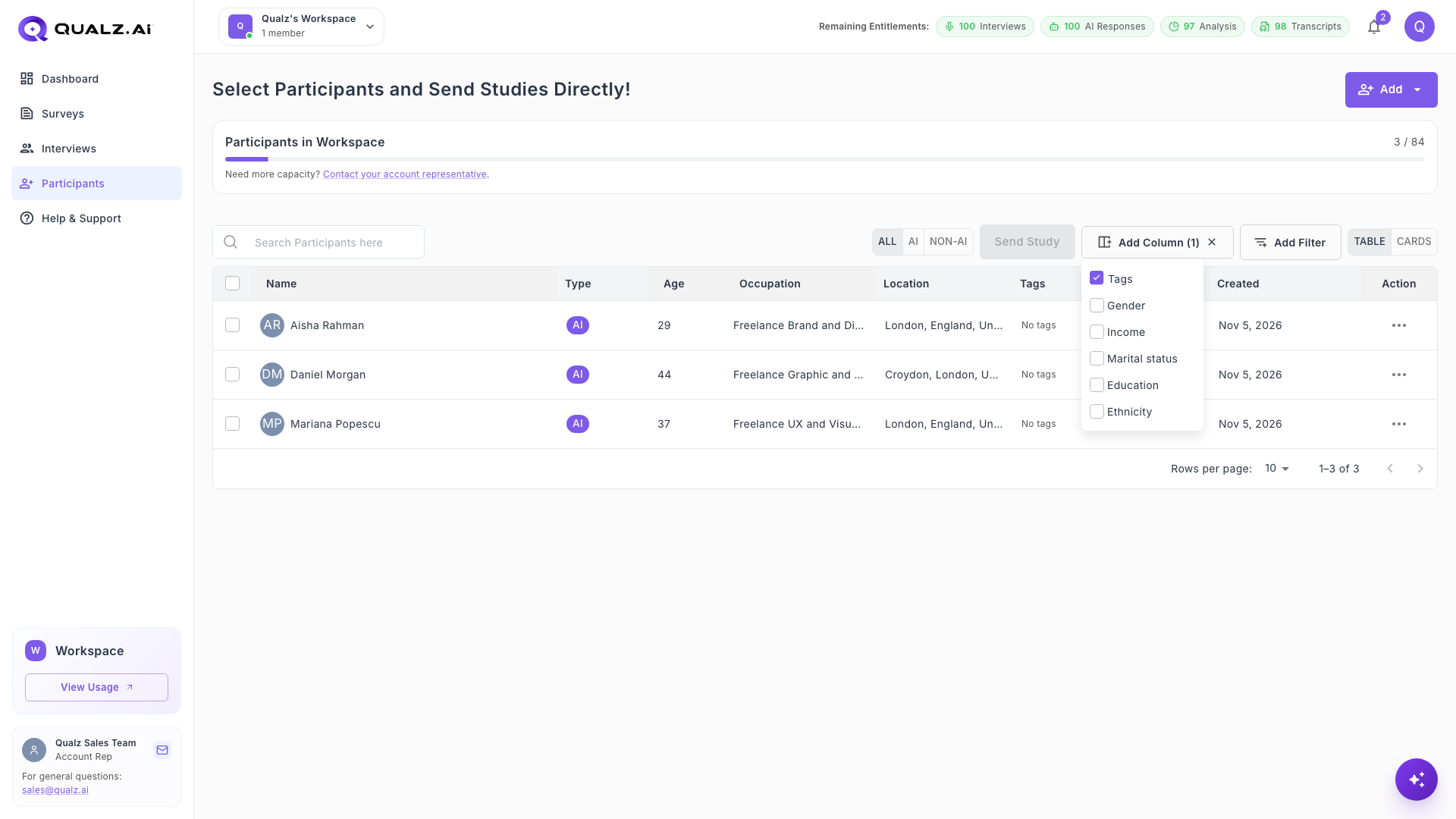
Click Add Column to show more details in the table: Tags, Gender, Income, Marital status, Education and Ethnicity. The number on the button shows how many extra columns are selected. To reset them, click the × on the button.
Finalize AI Participants and Send Your Survey
Tick the participants you want to use, then click Send Study. See How to Easily Send Your Study to AI Participants.