How to Configure and Share Survey
Complete and distribute your survey in a few simple steps. Follow these instructions to configure and share Dynamic survey to ensure your survey is ready to be shared effectively.
Set Participant Information Preferences
Customize the participant details you collect by enabling specific toggles.
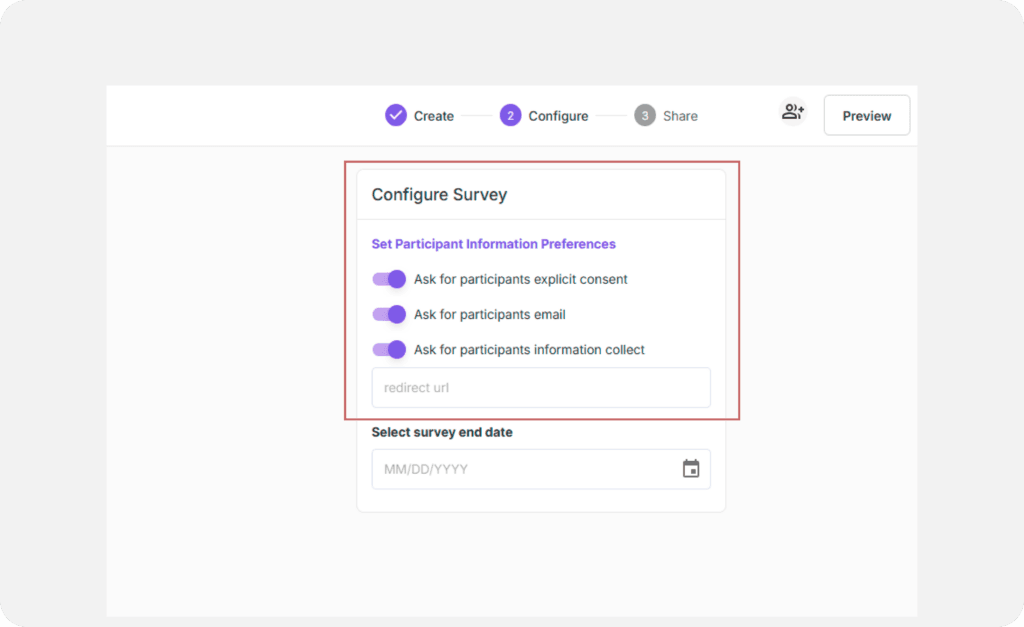
How to do it:
Request Explicit Consent
Toggle the “Ask for participants explicit consent” option to include a consent prompt at the start of your survey. Once enabled, participants must confirm their consent before beginning the survey.
Request Email Information
Toggle the “Ask for participants email” option to collect participants’ email addresses. This allows you to track responses or follow up if necessary.
Collect Additional Details
Enable the “Ask for participants information collect” toggle to gather more participant information, such as age, occupation, or preferences.
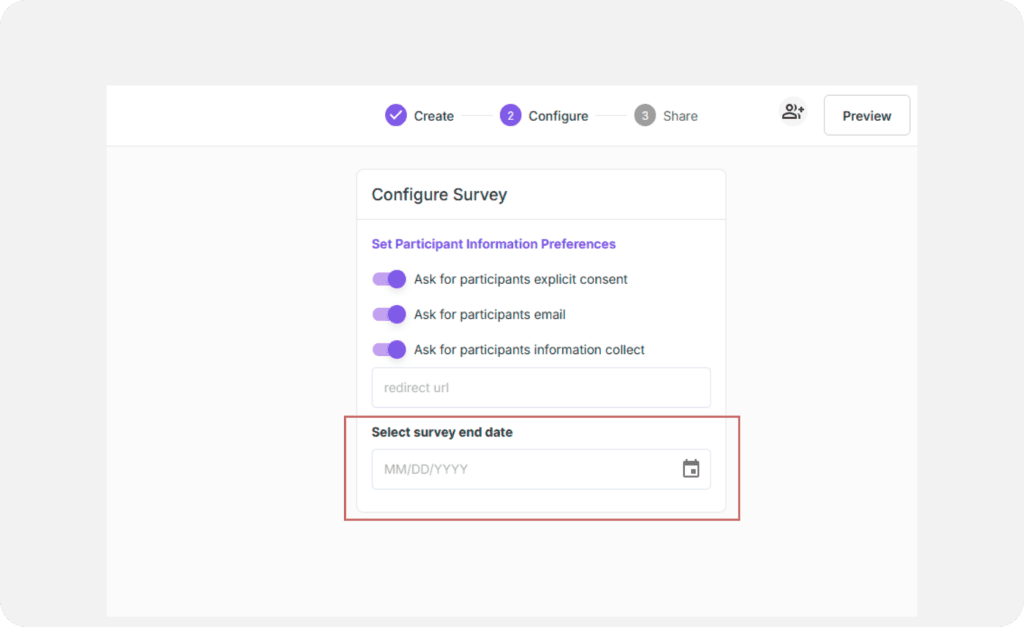
Select a Survey End Date
Specify the deadline for participants to complete your survey. This helps you manage response collection effectively.
How to do it:
- Set the end date in the survey settings.
- Example: “End date: January 31, 2025.”
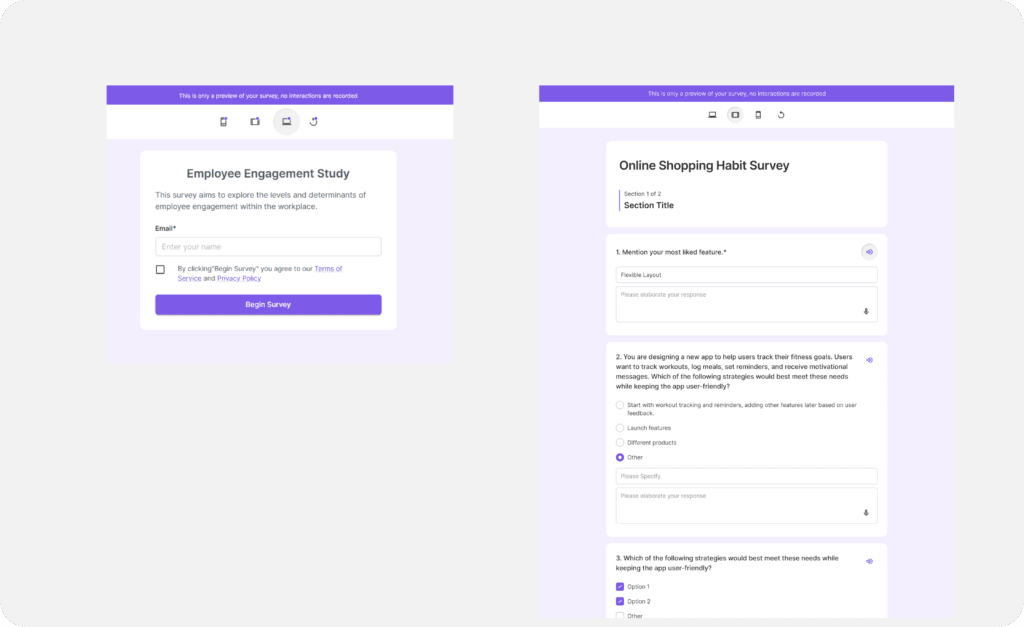
Preview Your Survey
Test your survey to ensure it looks and functions as intended.
How to do it:
- Use the preview option to view the survey as your participants will see it.
- Make any necessary adjustments before sharing.
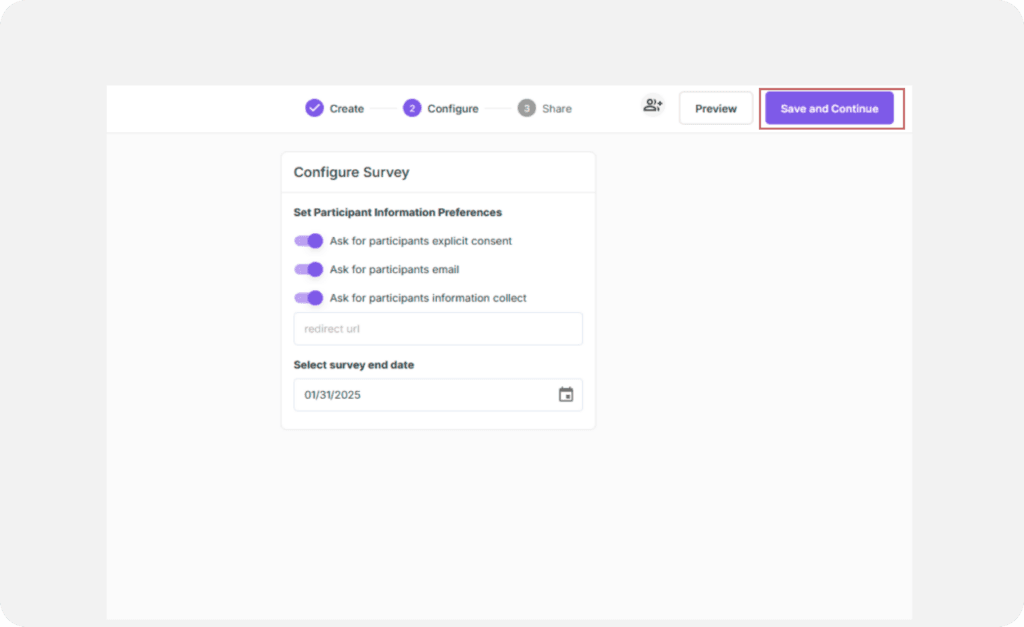
Save and Continue
After finalizing participant information preferences and previewing your survey, proceed to Save and Continue to share your survey.
Redirect URLs for Screener Surveys
If your survey uses Screener Questions, you can configure separate redirect URLs:
- Redirect URL — Where qualified participants go after completing the survey
- Incomplete Redirect URL — Where screened-out or incomplete participants are redirected
These settings ensure screened-out participants have a clean exit experience and can be tracked in your panel system.
Share Your Survey
The final step of the survey wizard is the Share page. It's laid out as three cards — pick whichever route (or mix) fits your recruitment plan:
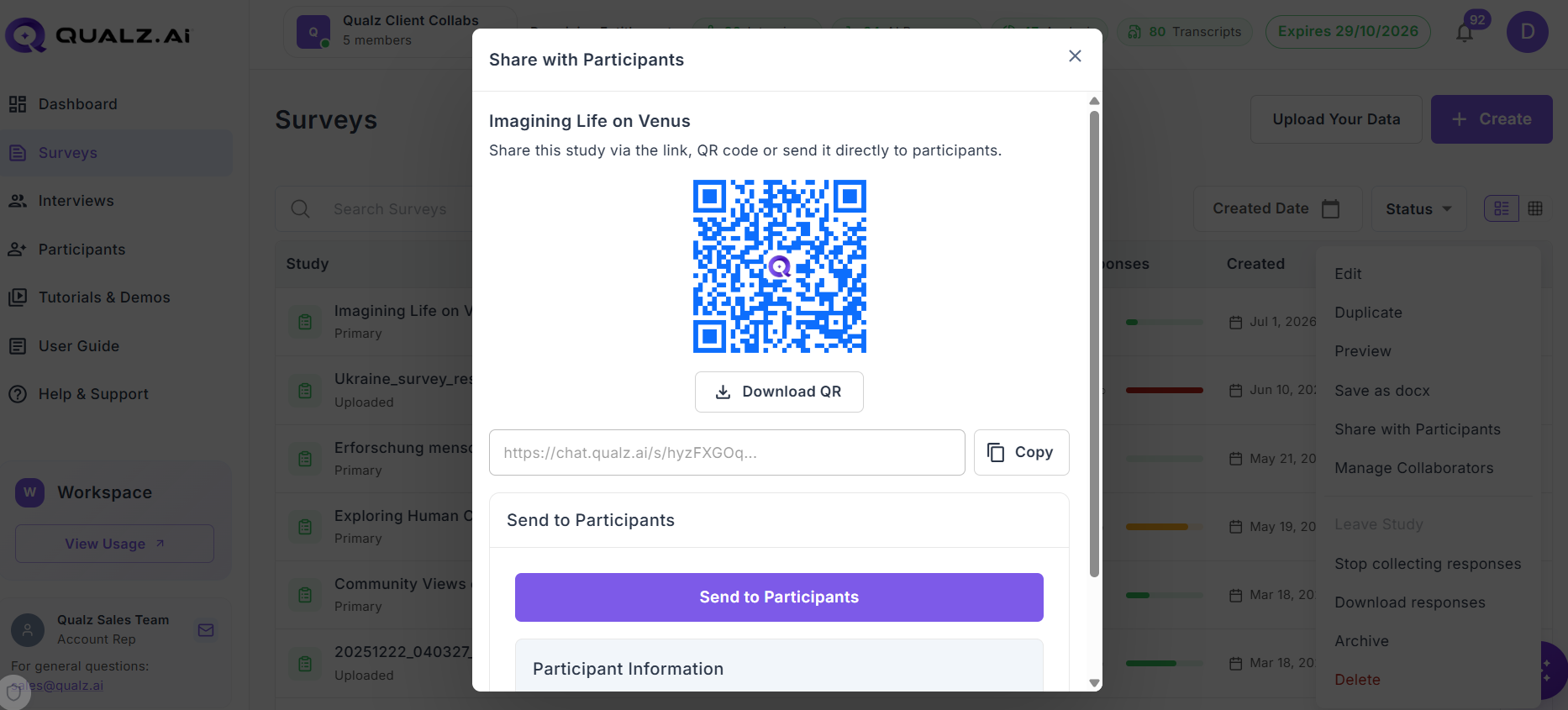
- Share Link — a short, unique URL you can copy and paste into an email, Slack thread, or panel. The card also has a one-click Copy button.
- Scan QR Code — a downloadable QR code participants can scan on their phone. Useful for in-person research, intercepts, and printed collateral.
- Send to Participants — the same unified card used across surveys and interviews. Invite human participants by email (Qualz tracks sent / opened / completed for you) and/or send the survey to AI participants. See How to Easily Send Your Study to AI Participants for the AI side.