User Dashboard
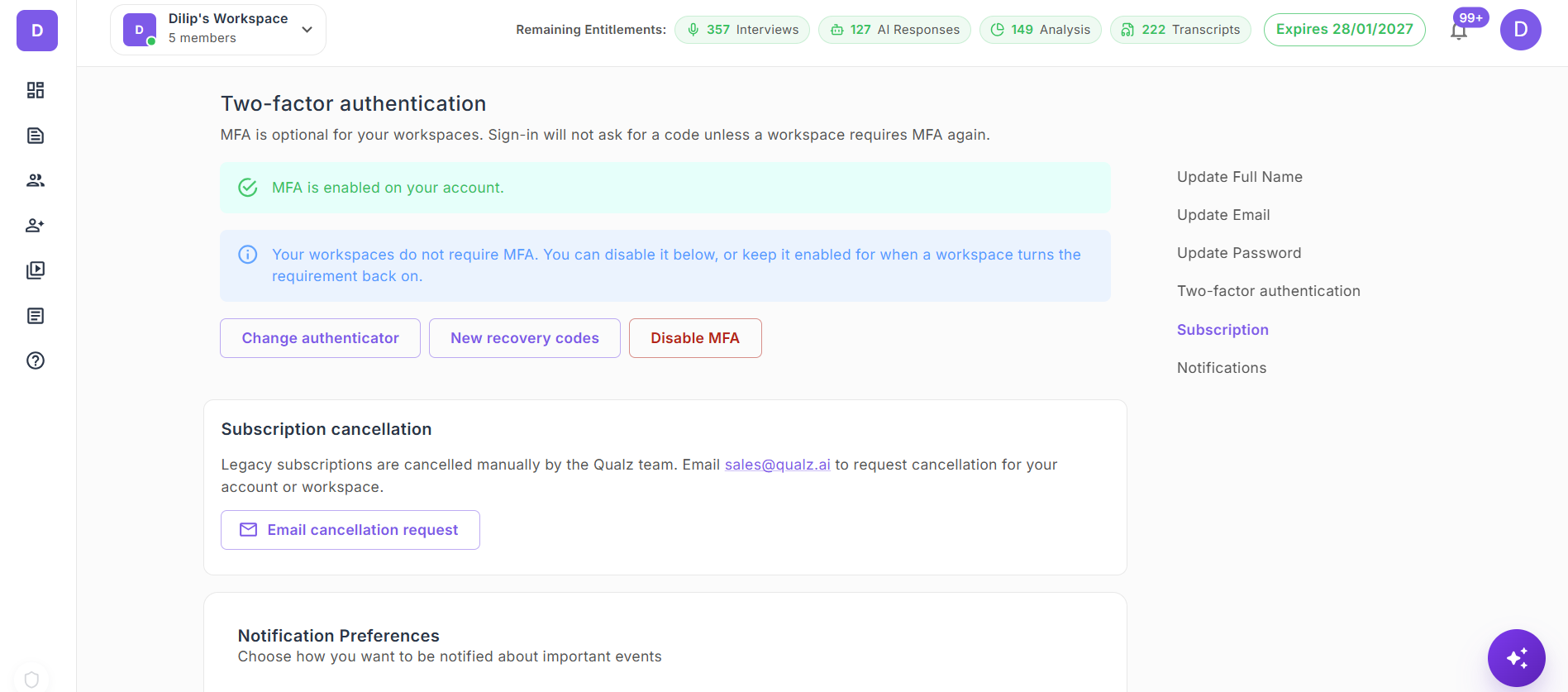
The Dashboard is your central hub for managing and accessing studies efficiently. It offers a clear overview of your account and key functionalities.
Workspace usage at a glance
- The top of the Dashboard shows an Entitlement / Usage panel — how much of each workspace entitlement (surveys, interviews, credits, seats) has been consumed and how much is left in the current billing period. For a deeper breakdown, open Workspaces → Usage in the side menu. See How Entitlements Work for more.
Create New Studies
- Start a Dynamic Survey, AI-Moderated Interview, or configure AI Participants directly from the Dashboard.
Recent Studies List
- View your recent studies right on the Dashboard. Switch between table view and card view, sort by any column, and change how many are shown per page (default: 8) — the Dashboard remembers your preference.
Study Details
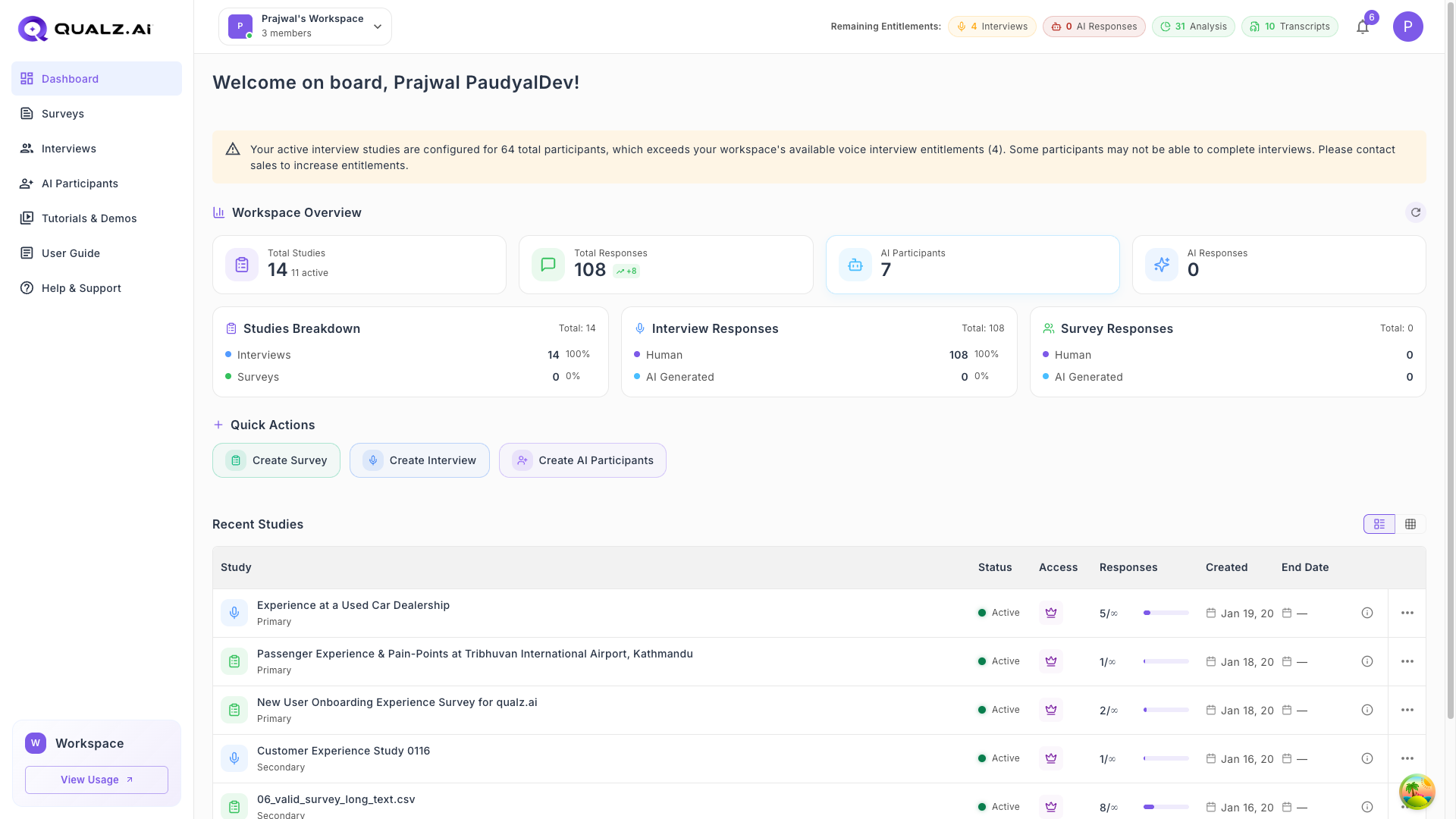
Each study in the list shows the following information:
- Title
- Status
- Owner
- Responses Count
- Created Date
- Updated Date
Study Classification
Easily identify the study type and origin:
- Study Type: Dynamic Survey or Interview.
- Primary Study: Created within the Qualz platform.
- Secondary Study: Imported from external platforms.
Sorting Options
Navigate the dashboard to organize your studies by:
- Study Title
- Status
- Owner
- Responses Count
- Created Date
- Updated Date
Action Menu Options
Use the action menu for quick operations:
- Edit: Modify the study.
- Preview: View the study as it will appear to participants.
- Share: Generate a link or QR code to share the study.
- Delete: Permanently remove the study.
User Profile Menu
Click on your profile icon in the top-right corner to access account options:
Account Settings
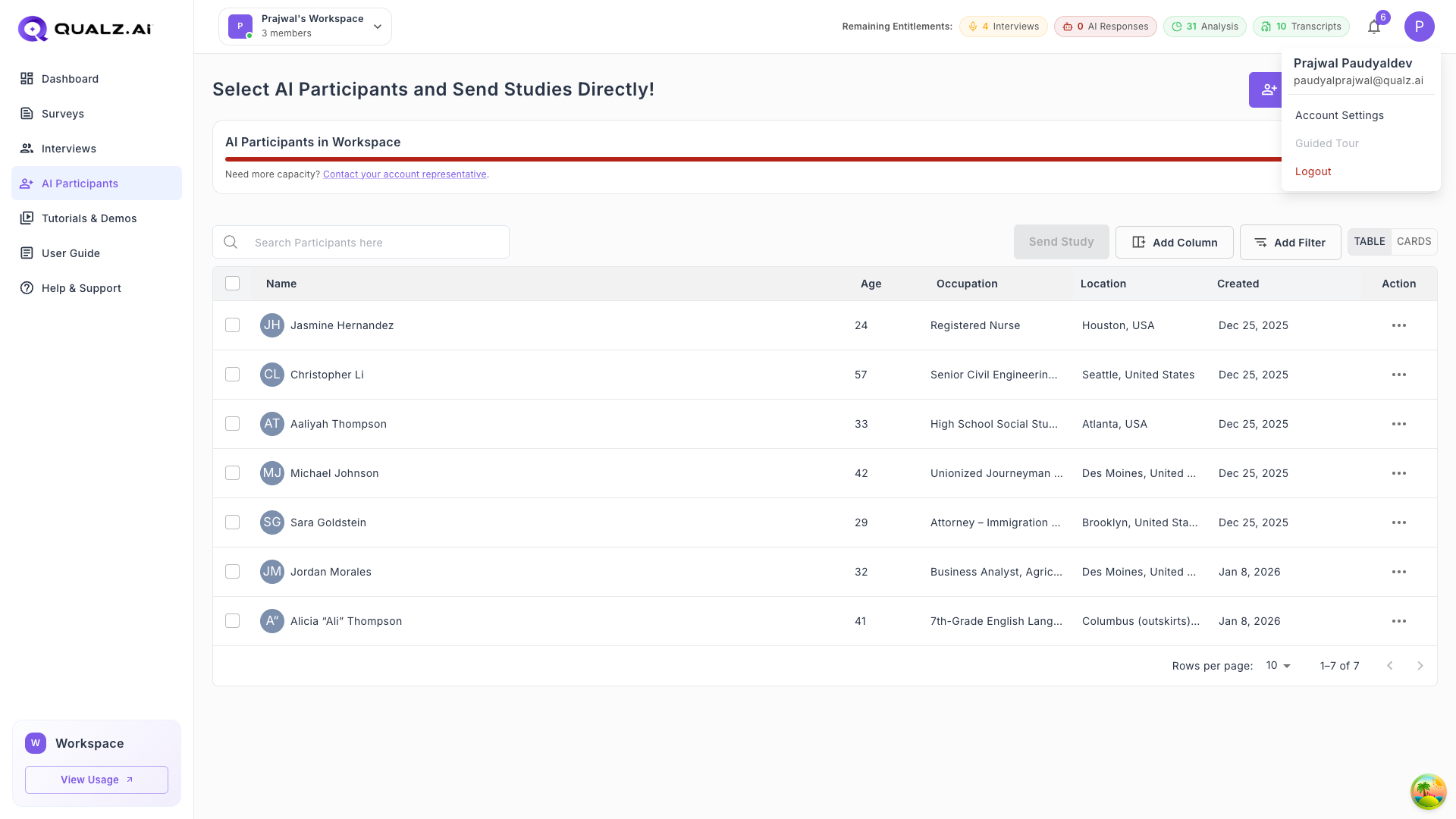
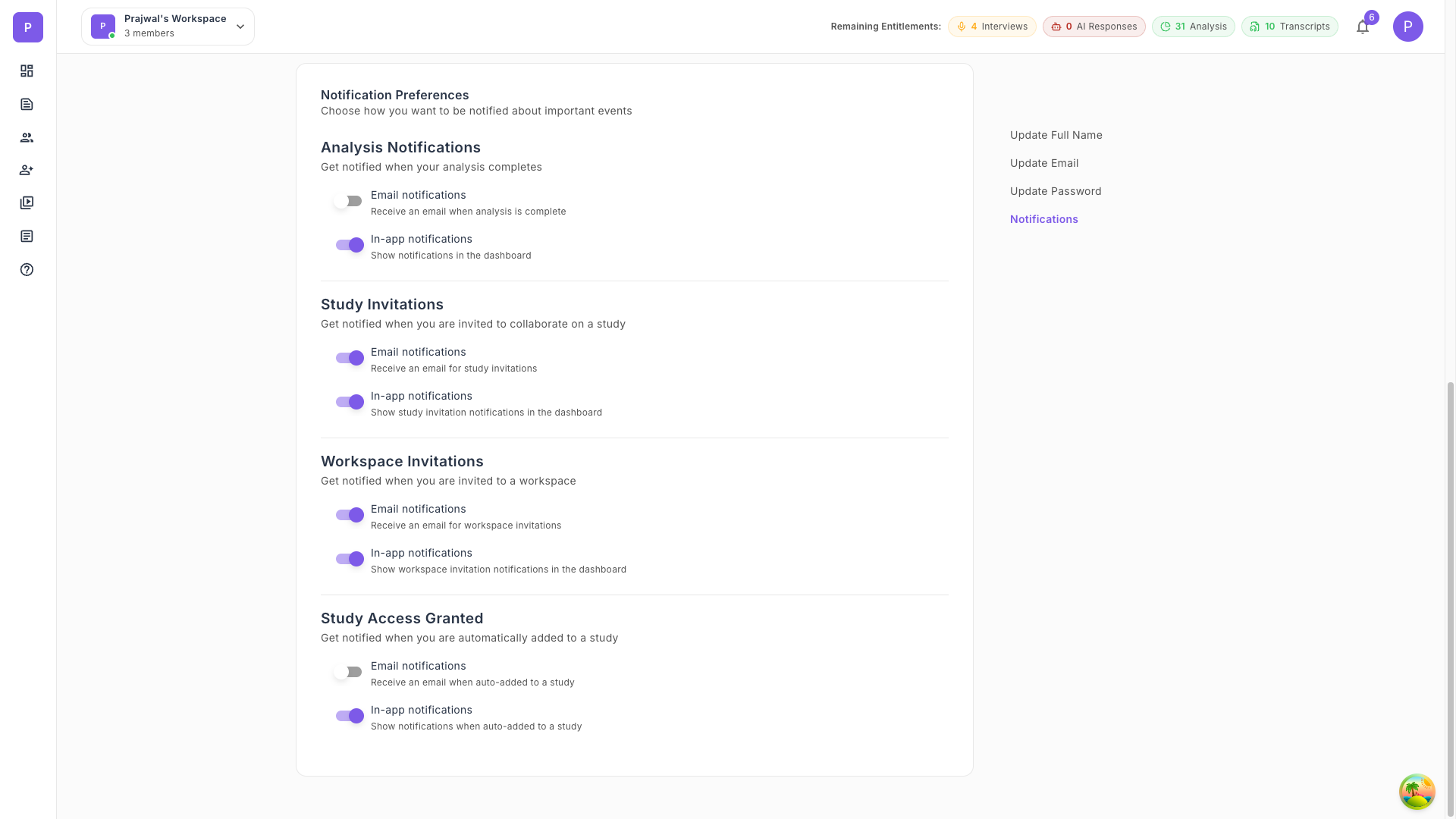
Access your account settings to update your name, email, password, and notification preferences:
Two-factor authentication (MFA)
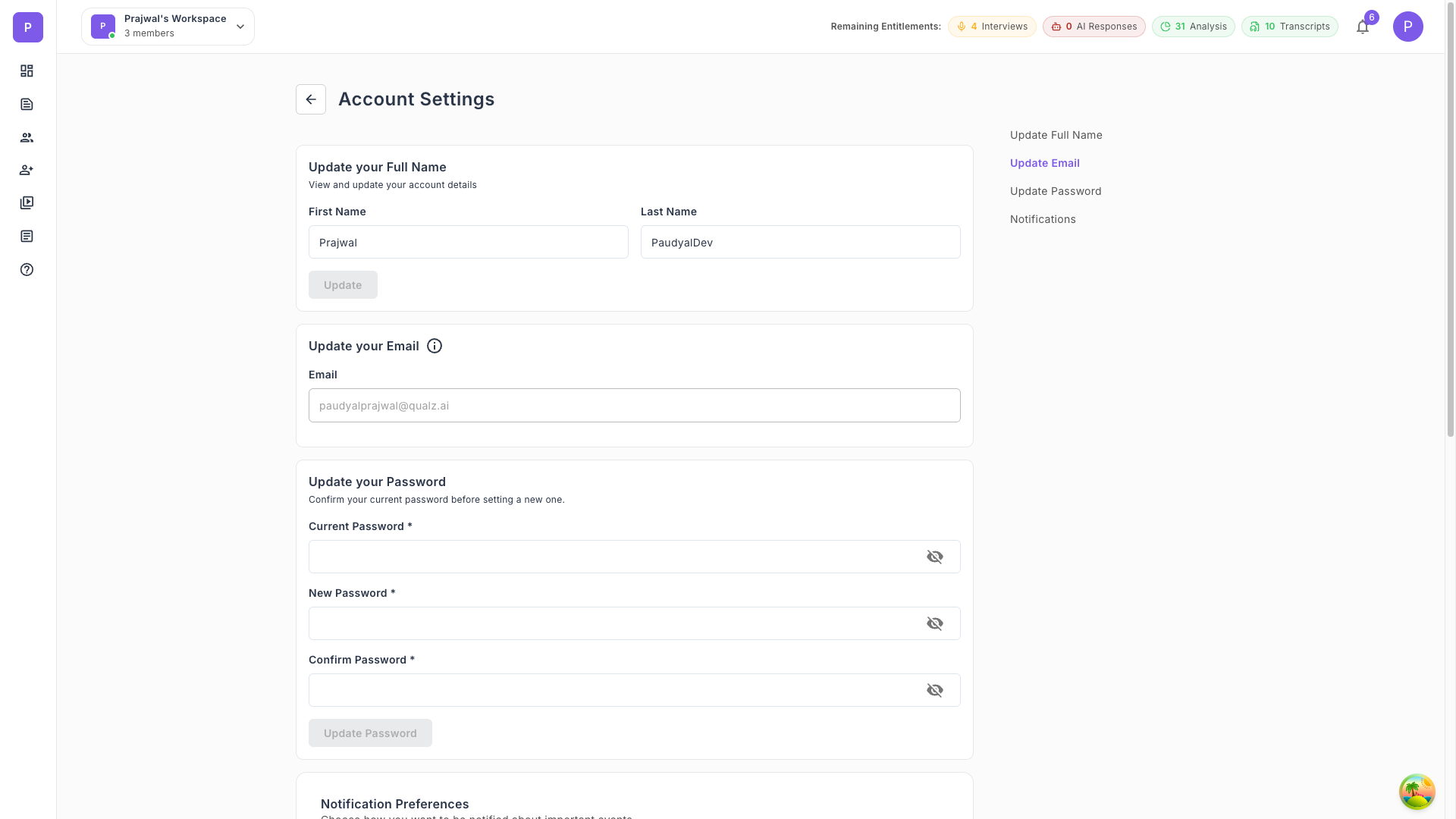
MFA is managed from the same Profile page. Scroll to the Two-factor authentication section to enable MFA (scan a QR code with your authenticator app), regenerate recovery codes, change your authenticator, or disable MFA. If a workspace you belong to requires MFA, the disable option is greyed out until the requirement is lifted. See Existing User Login → Two-Factor Authentication Challenge for how MFA affects sign-in.