Existing User Login
Just follow the steps below for an existing user login.
Access the Website
- Open qualz.ai in your browser.
- If you prefer, you can head straight to dashboard.qualz.ai to log in directly.
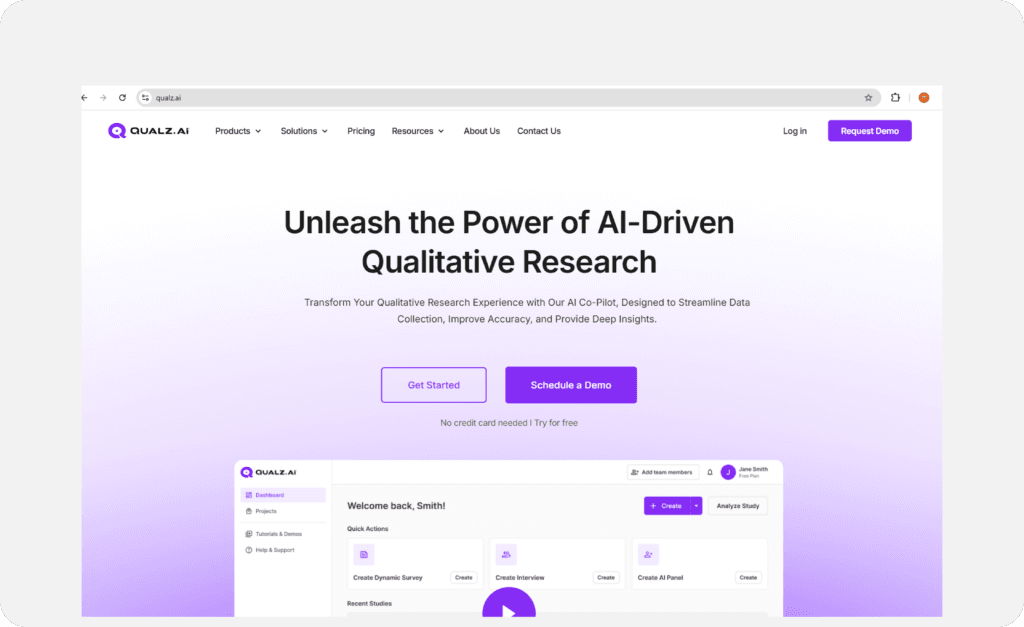
Initiate Login
- Click on the Login button.
Enter Your Credentials
- Provide your registered Email Address and Password.
- Click Login to access your account.
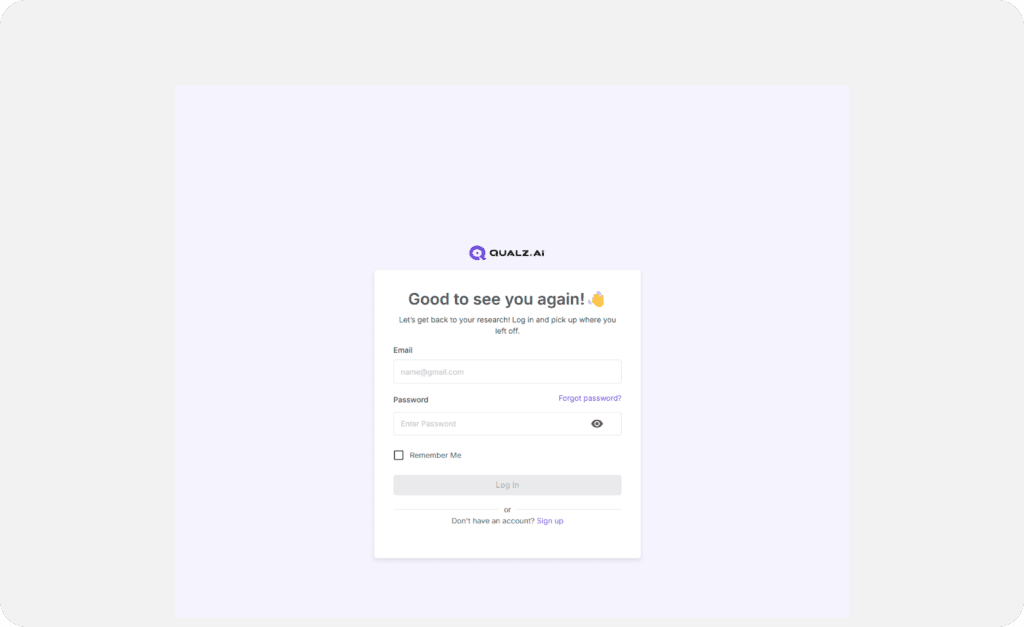
Two-Factor Authentication Challenge (if enabled)
If you have two-factor authentication (MFA) enabled on your account, a Two-factor authentication dialog appears right after you submit your password.
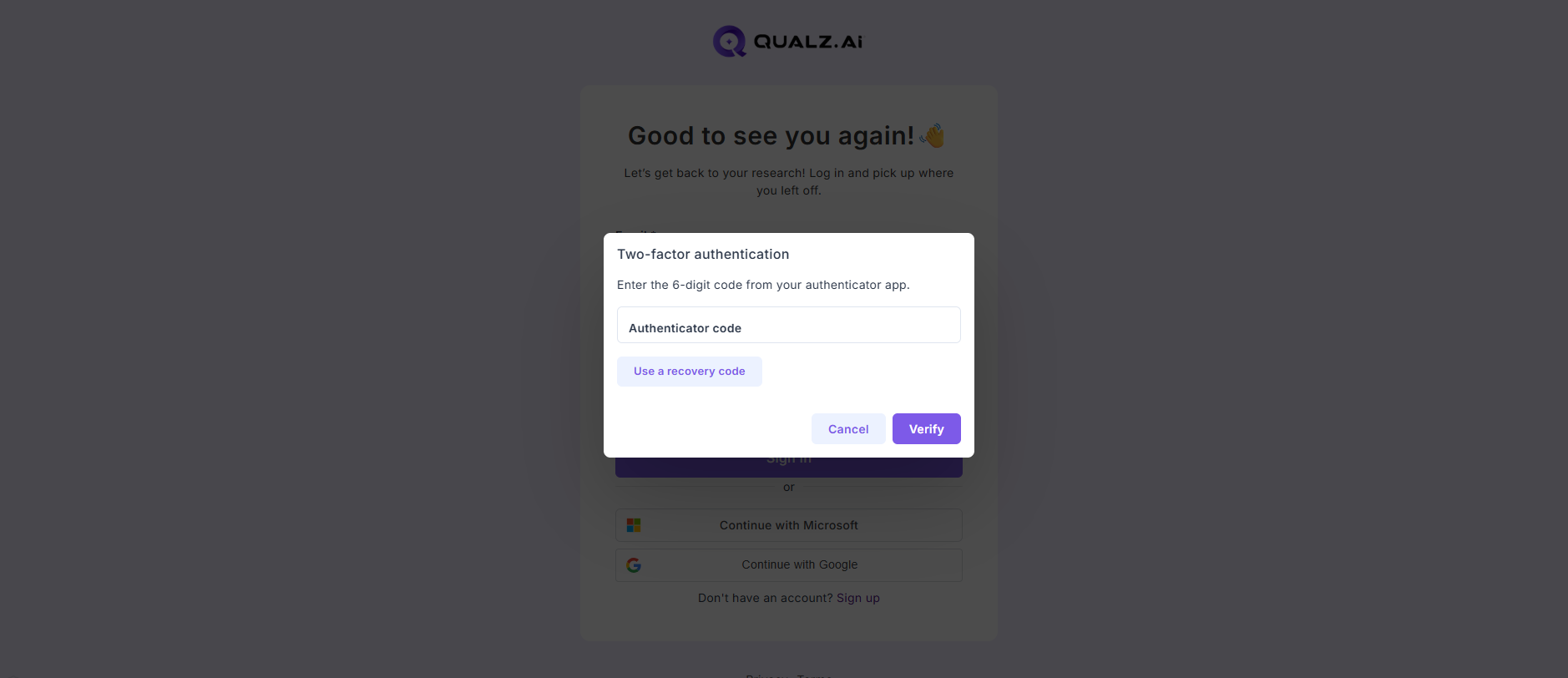
- Open your authenticator app (Google Authenticator, Microsoft Authenticator, 1Password, Authy, etc.) and type the current 6-digit code into the Authenticator code field, then click Verify.
- Lost your phone? Click "Use a recovery code" at the bottom of the dialog and paste in one of the single-use recovery codes you saved during setup. Each recovery code works only once; the moment you use one, generate a fresh batch from your profile under Two-factor authentication → New recovery codes.
- If you've lost both your authenticator device and every recovery code, email service@qualz.ai with your account email and we'll help you recover access. There's no self-service path in this case — the sign-in dialog needs either an authenticator code or a recovery code to let you back in.
If you haven't set up MFA yet but a workspace you belong to requires it, you won't see the challenge dialog — you'll be taken to the MFA setup screen instead, where you can enrol an authenticator app before continuing to the dashboard.
Trouble Logging In?
Forgot your password? Don’t worry—we’ve got you covered! Follow these quick and easy steps to reset it and get back into your account:
Find the “Forgot Password?” Link
On the login screen, click the “Forgot Password?” link.
Reset Your Password
- You’ll land a screen where you need to enter your registered email address.
- Type in your email and hit Reset Link.
- Pro Tip: If you recall your password, you can sign in directly from this page.
- Still can’t remember? Click the Send Reset Link to move forward.
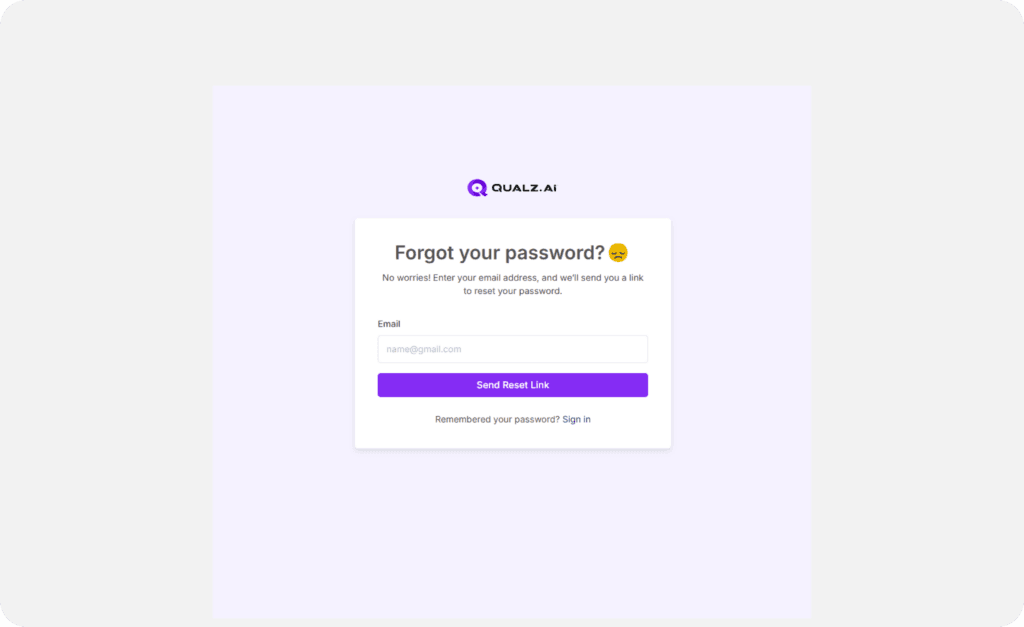
Check Your Email
- Open your inbox and find the email with the subject line: "You Requested a Password Reset" (it’s from us!).
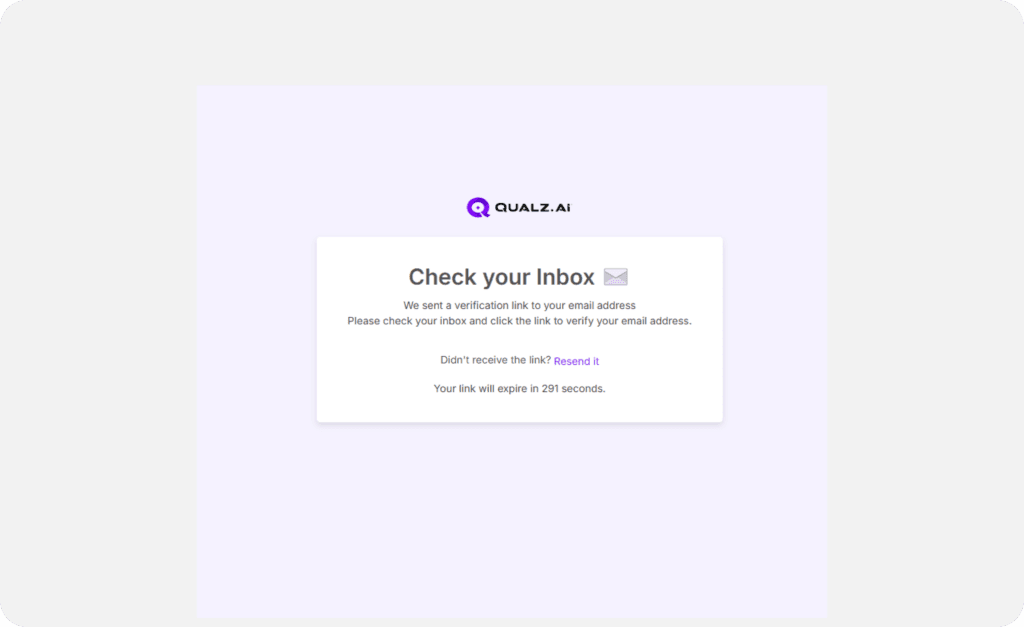
- Click the verification link inside the email to confirm your email address.
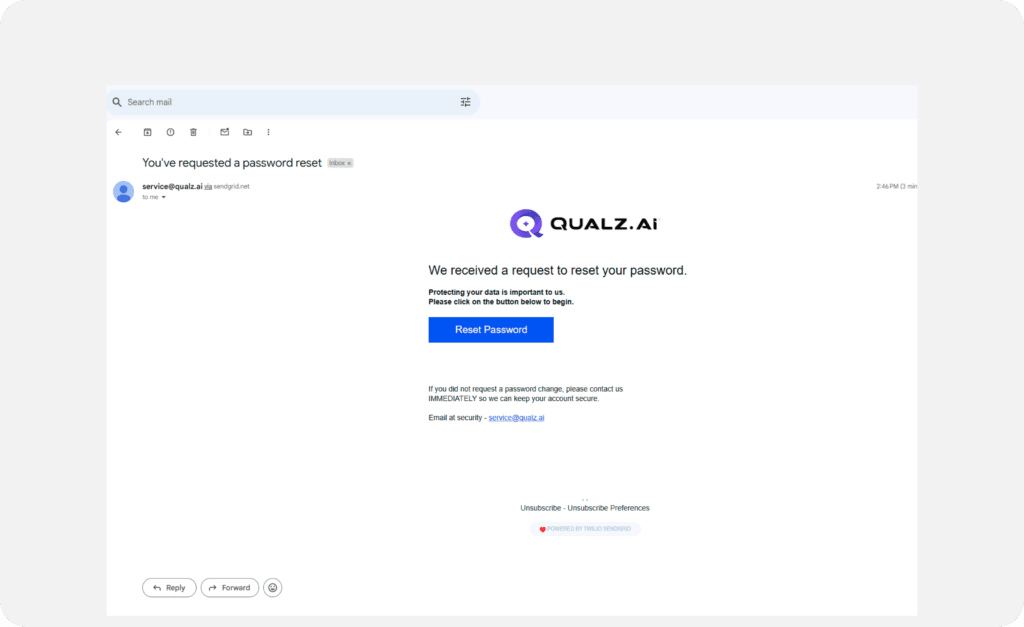
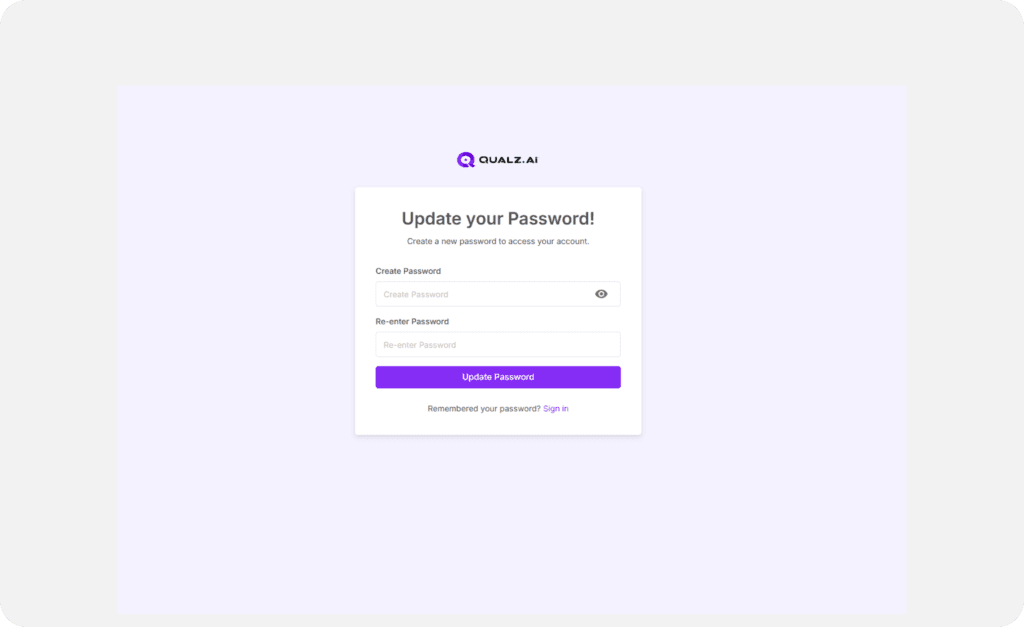
Create a New Password
- Clicking the link will take you to the Qualz.ai page.
- Follow the instructions to set up a new password—and you’re done!
Need Help?
If anything doesn’t go as planned, our friendly support team is just a message away. We’re here to help!