New User Easy Registration
Access the Website
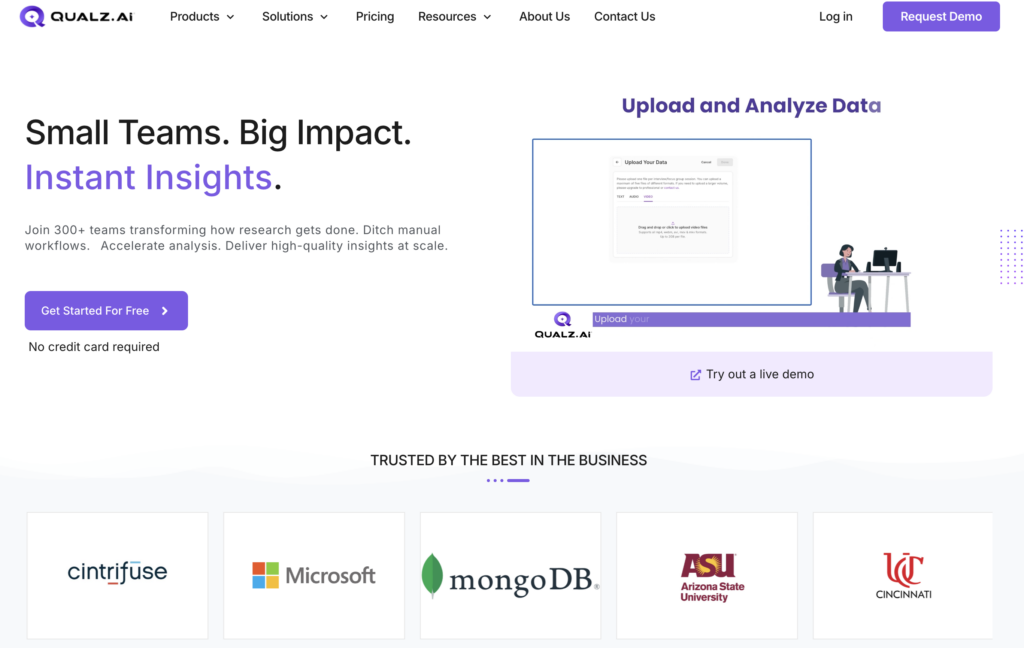
Follow these simple steps to register as a new user: • To get started, open your browser and go to qualz.ai • Access the Website
Begin Registration
- On the homepage, locate and click the “Get Started” button.
Enter Your Details
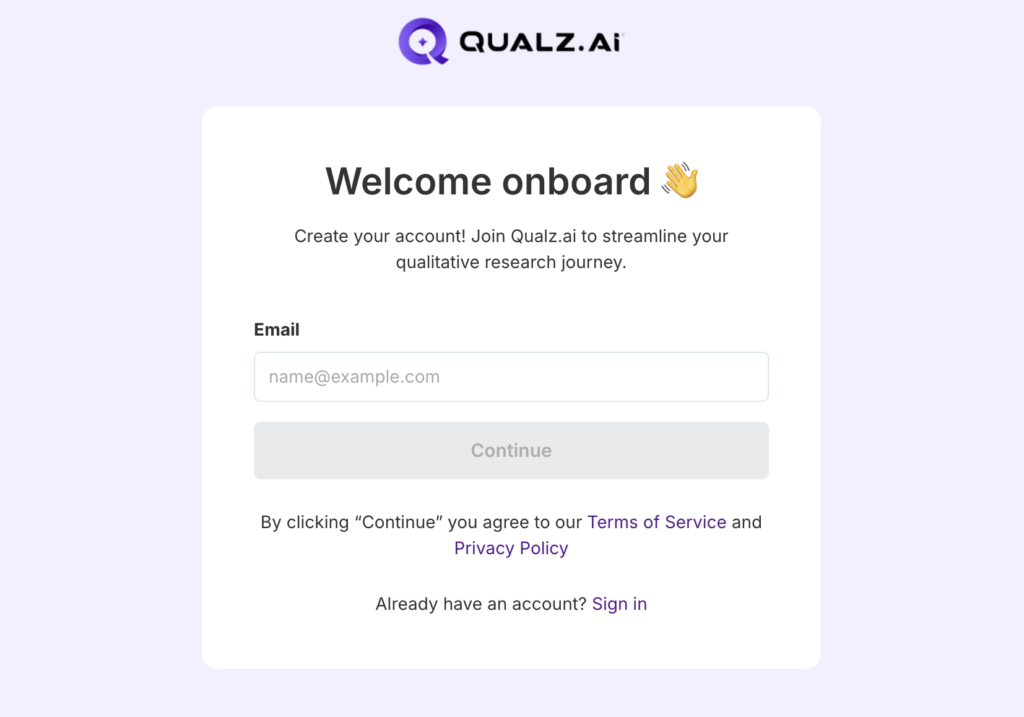
- Provide Your Email Address: Enter a valid email address**.** This email will be linked to your Qualz.ai account for communication, verification, and password recovery.
- Click on the Continue button to proceed.
- Read and understand the Terms of Service and Privacy Policy before you proceed.
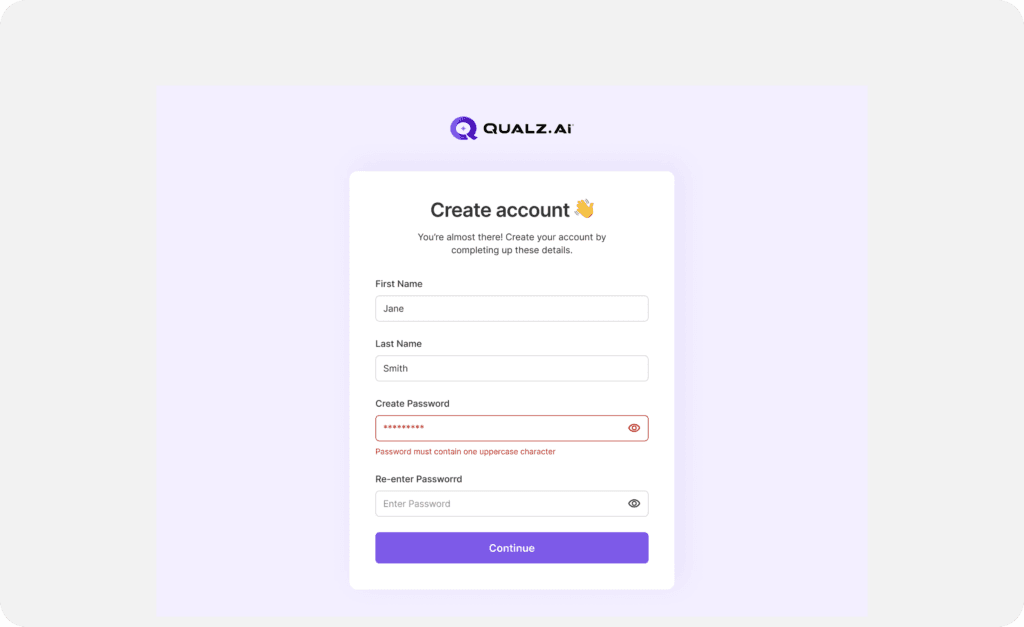
- Enter your First Name and Last Name.
- Create a Secure Password: Your password should meet the following criteria:
At least 8 characters long.
- Includes at least one uppercase letter.
- Contains at least one number.
- Includes at least one special character.
Confirm Your Password: Re-enter your chosen password to ensure accuracy and avoid login issues later
Click Submit or Create Account to proceed.
Verify Your Email
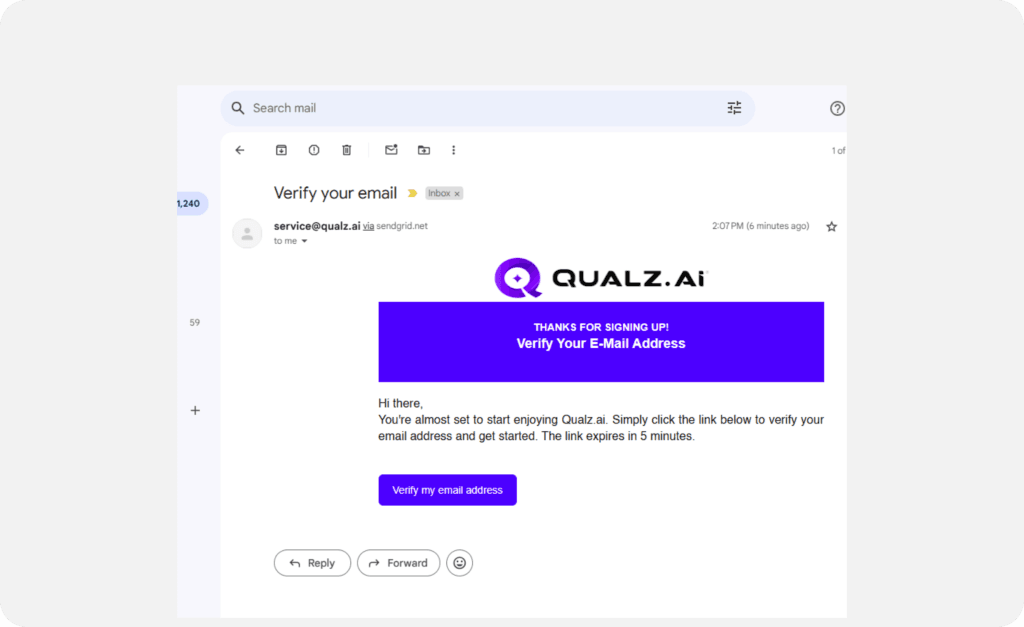
- After submitting your details, an email verification link will be sent to the email address you provided.
- Check your inbox for an email from Qualz.ai with the subject Verify Your Email Address.
- If you do not receive the email, click the Resend Link option.
- Click "Verify My Email Address" in the email to access the login screen.
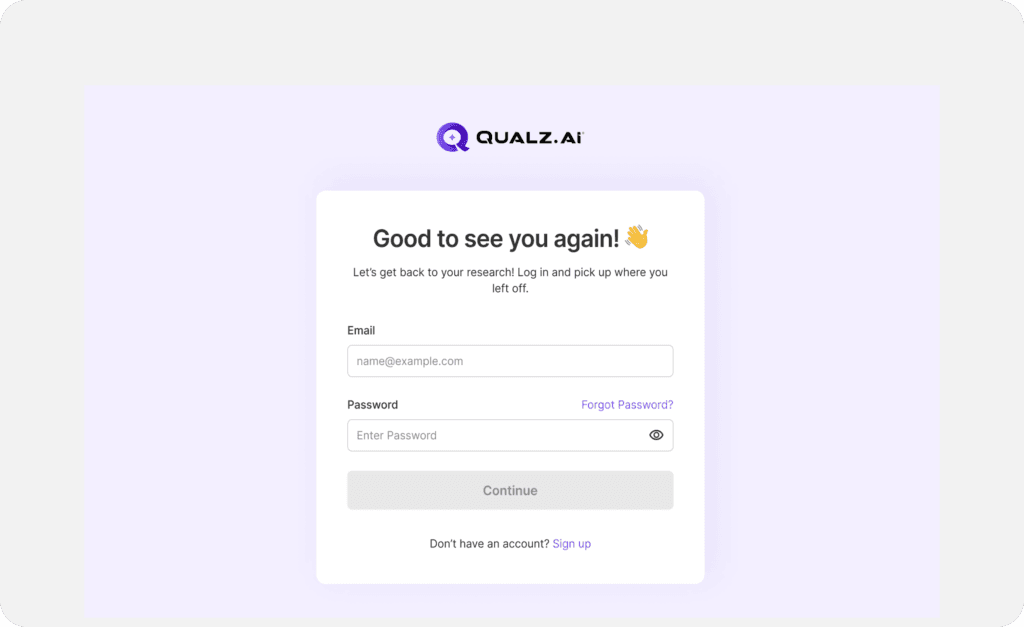
Log In to the Application
Now that your email is verified, you are ready to log in.
Use your registered email and password to log in and access the app.
Set Up Two-Factor Authentication (if required)
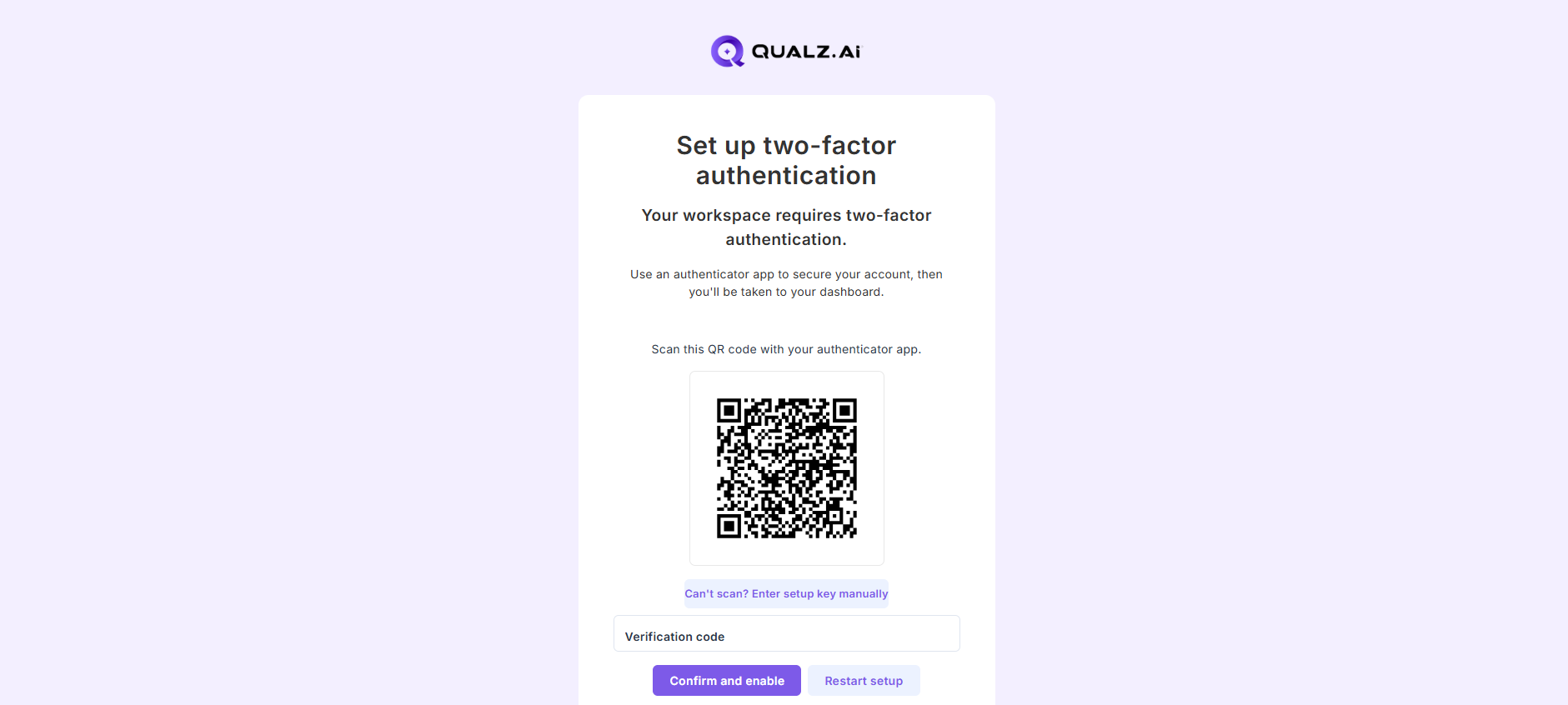
If a workspace you belong to requires two-factor authentication (MFA), you'll be taken to the Set up two-factor authentication screen right after your first successful login. If none of your workspaces require MFA, you'll skip this step and go straight to the dashboard — you can still choose to turn MFA on later from your profile.
When you land on the setup screen:
- Install an authenticator app on your phone if you don't already have one — Google Authenticator, Microsoft Authenticator, 1Password, and Authy all work.
- Click Enable MFA and scan the QR code with your authenticator app. If you can't scan (for example, you're setting up on a desktop authenticator), click "Can't scan? Enter setup key manually" and copy the time-based setup key into your app.
- Enter the 6-digit verification code shown in your authenticator app and click Confirm and enable.
- Qualz will show you a set of single-use recovery codes. Save them somewhere safe (a password manager is a good home) — they let you sign in if you lose your device. Click Continue to dashboard once you've stored them.
If you need to use a different account before finishing setup, the Sign out link at the bottom of the setup page takes you back to the sign-in screen.
You’re All Set!
- Explore Features: Navigate through the platform to familiarize yourself with the available tools and functionalities.
- Start a New Project: Begin using Qualz.ai’s tools to conduct a Dynamic Survey, an AI-moderated Interview, analyze your existing data, and also generate AI participants to do a quick validation of your ideas and get actionable insights instantly. Access Help & Support: If you encounter any issues or have any questions, our support team is just a click away!