Transcript Workflows: Translation, Redaction & Enhancement
Qualz.ai offers three post-processing workflows that create new versions of your interview transcripts without modifying the originals. Each workflow produces a derived transcript that appears alongside the source in your transcript list.
Accessing Transcript Workflows
There are two ways to run transcript workflows:
- From the transcript menu — Click the three-dot menu (⋯) on any transcript and select Transcript Workflows.
- From the Run Workflows button — Click the purple Run Workflows button at the top-right of your study page.
Both paths open the same three-step wizard:
- Select Transcripts — Choose which completed transcripts to process. You can select multiple transcripts to process in a single run.
- Configure Workflow — Pick the workflow type and set its options.
- Review and Run — Confirm your selections and submit.
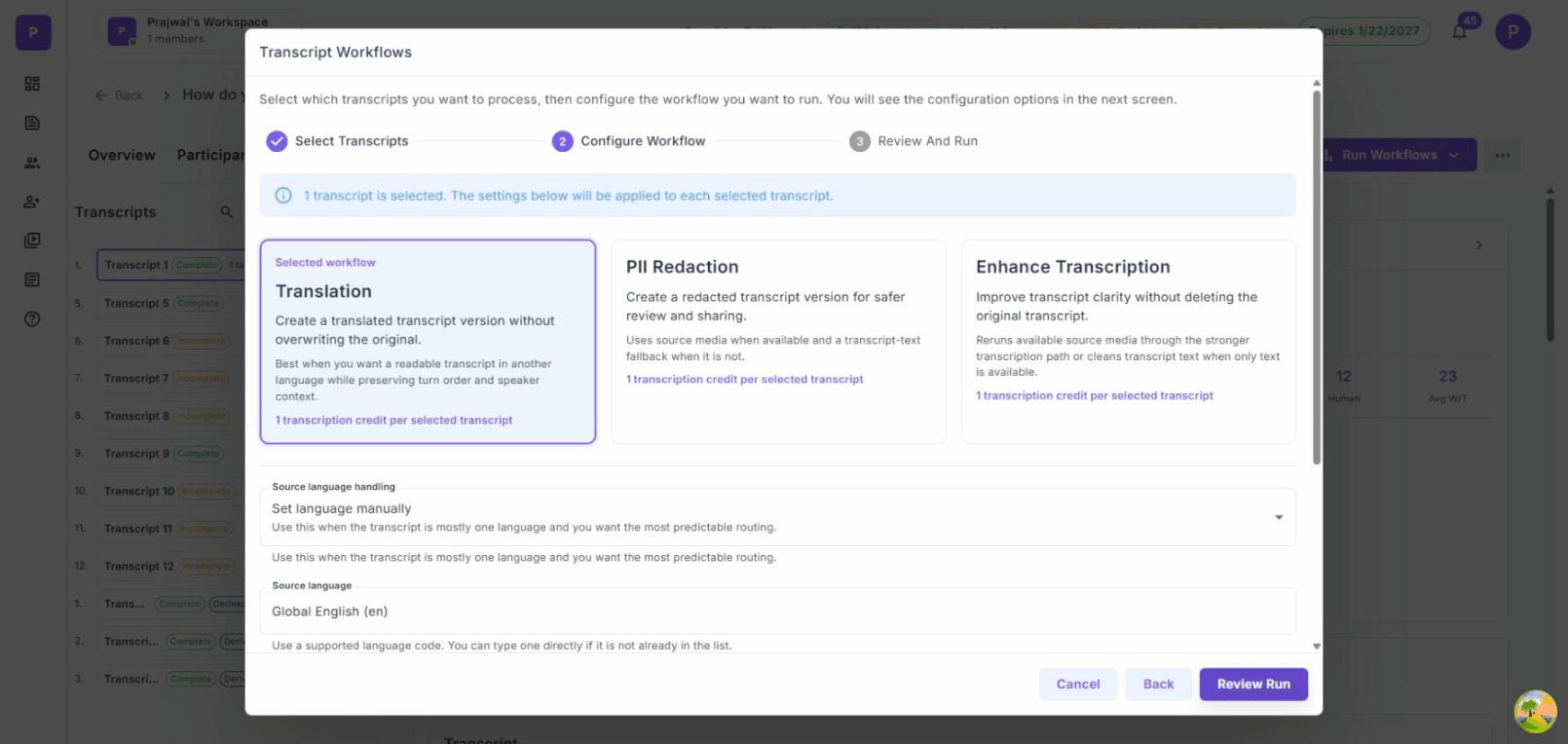
Cost: Each workflow consumes 1 Transcription Upload entitlement per selected transcript.
Translation
Create a translated version of your transcript in another language while preserving turn order and speaker labels.
When to use
- International research with multilingual teams
- Sharing findings with stakeholders who speak a different language
- Analyzing interviews conducted in languages your team does not speak fluently
Configuration options
Source language handling:
- Set language manually — Choose the source language from 78+ supported languages. Best when the transcript is in a single known language.
- Auto-detect — Let the system identify the source language automatically. Useful when you are unsure or have mixed-language content.
- Code-switching / bilingual — For interviews where the participant switches between two languages.
Target language: Select the language you want the transcript translated into from the full list of supported languages (including regional variants like US English, British English, Australian English, etc.).
What you get
A new derived transcript labeled with the target language code (e.g., "Transcript 1 - Translated (es)"). The original transcript is untouched.
PII Redaction
Create a redacted copy of your transcript with personally identifiable information replaced by safe placeholders. This is essential for sharing transcripts externally, publishing research, or complying with data privacy requirements.
When to use
- Sharing transcripts with external clients or collaborators
- Publishing excerpts in research reports
- Alignment with GDPR, HIPAA, or institutional privacy policies
- Archiving interviews with sensitive participant data removed
Configuration options
PII categories to redact: Select from 40+ categories including:
- Person names, email addresses, phone numbers
- Account numbers, credit card numbers, US Social Security numbers
- Locations and addresses
- Medical conditions, dates of birth, occupations
- Organizations, nationalities, and more
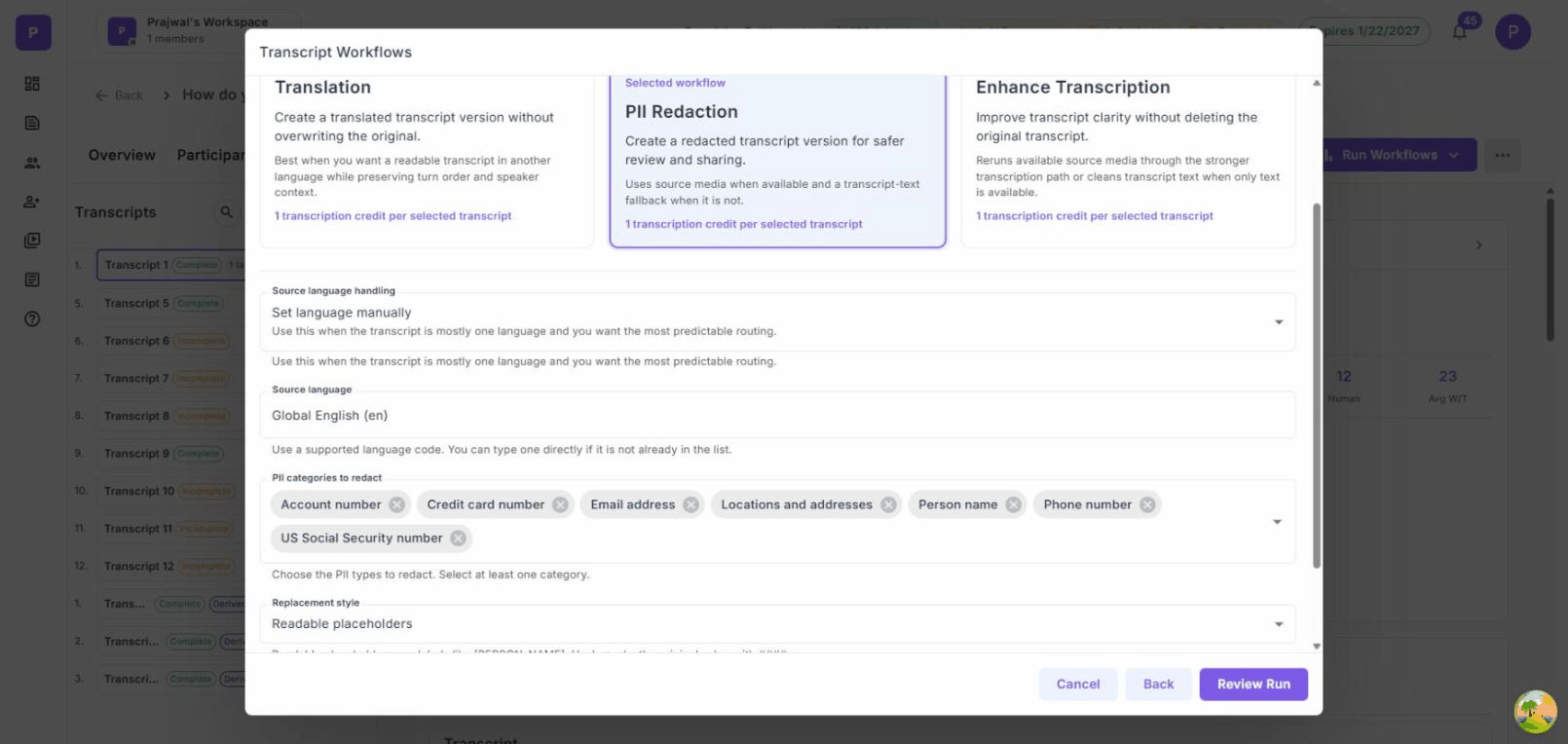
Replacement style:
- Readable placeholders — Replaces PII with descriptive labels like [PERSON_NAME], [EMAIL_ADDRESS], [PHONE_NUMBER]. Best for readability.
- Hash masking — Replaces PII with #### characters. Best when you need to obscure data completely.
What you get
A new derived transcript labeled "PII Redacted" (e.g., "Transcript 9 - PII Redacted"). The original transcript is preserved unchanged.
Important: PII redaction creates a new derived transcript. Existing summaries or analysis artifacts from the original may still contain PII until they are regenerated from the redacted version.
Enhance Transcription
Improve transcript clarity by re-running the audio through a stronger transcription model. This is useful when the original transcription quality is low due to background noise, accents, or poor audio.
When to use
- Audio quality was poor during the interview
- The original transcription missed words or phrases
- You want the highest possible accuracy before running analysis
How it works
- When source audio/video is available, the system re-transcribes from the original media using a higher-accuracy model.
- When only text is available (uploaded transcripts), the system cleans and improves the transcript text.
- The original transcript is never deleted or modified.
What you get
A new derived transcript with improved accuracy, labeled as an enhanced version.
PII Redaction at Upload
You can also apply PII redaction when uploading transcripts for the first time. During the upload configuration step, expand the PII redaction options section to select redaction policies and replacement style. This processes the transcript in a single pass (upload + redact) rather than requiring a separate workflow run.
Managing Derived Transcripts
Derived transcripts appear in your transcript list with colored badges:
- Derived — Indicates the transcript was created by a workflow
- Translated (xx) — Shows the target language code
- PII Redacted — Indicates PII has been removed
You can filter your transcript list by workflow type and status using the filter controls at the top of the transcript panel. Derived transcripts can be used for analysis, downloaded, or further processed with additional workflows.
Need help with transcript workflows? Our team can advise on the best approach for your multilingual or privacy-sensitive research. Book a call →
Related Guides
- How to Analyze Interview Data — Run analysis on original or derived transcripts
- How to Configure Your Interview Study — Study setup including recording configuration
- How to Share an Interview Study with Participants — Sharing and reinviting participants