How to Configure Your Interview Study?
Learn how to securely configure and personalize your AI-moderated interview before sharing it with participants.
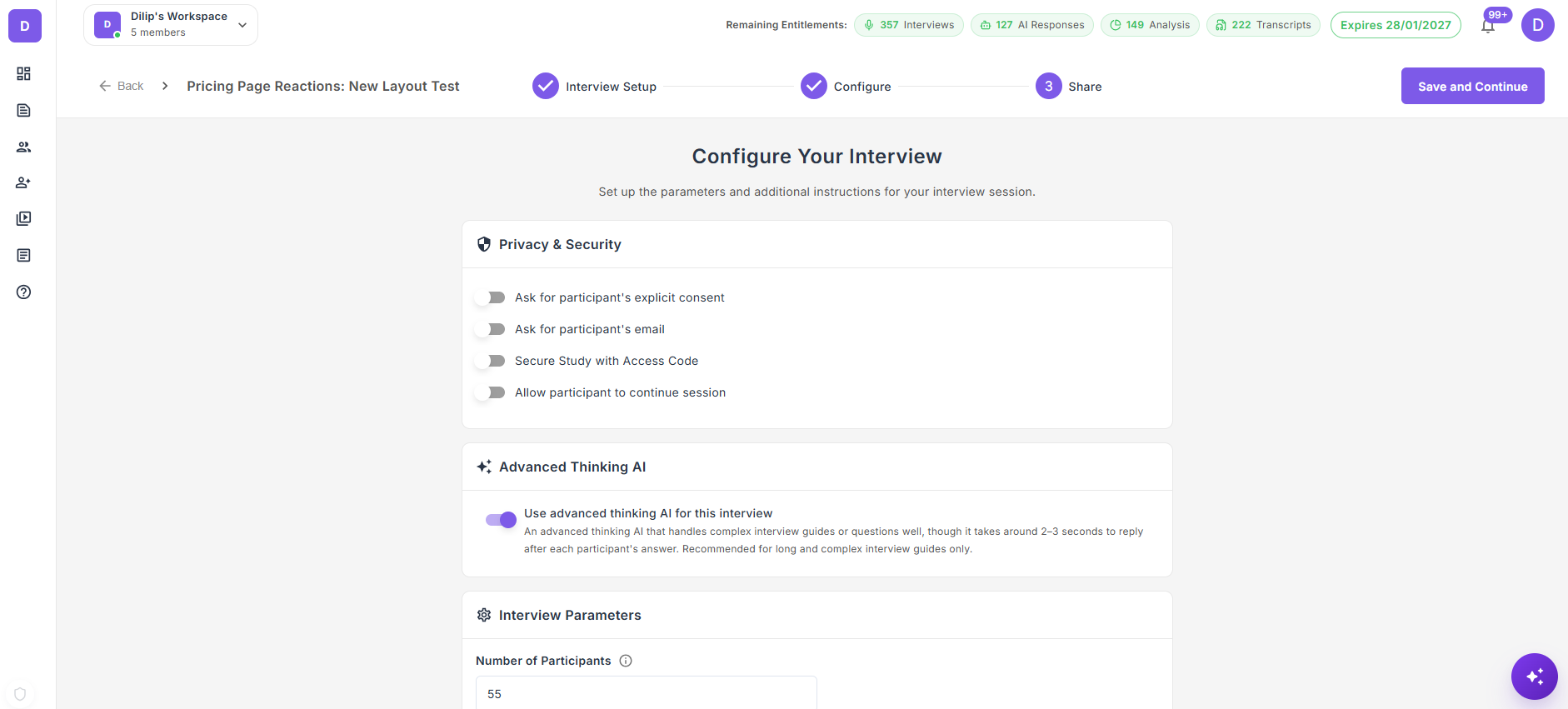
After setting up your interview study details (title, objective, mode, and guide), you’ll be taken to the Configure step. This is where you define participant requirements, access control, interaction modes, and messaging.
Note: The AI interviewer name and overflow buffer are configured on the previous Interview Setup page, not here.
Participant Settings
-
Ask for the participant’s explicit consent — Enable this to show a consent prompt before the interview begins.
-
Ask for the participant’s email — Enable this to collect participants’ emails for follow-up communication or tracking.
-
Secure Study with Access Code — Restrict access to your interview by requiring participants to enter a code. Ideal for private or invitation-only studies.
Interview Language and Voice
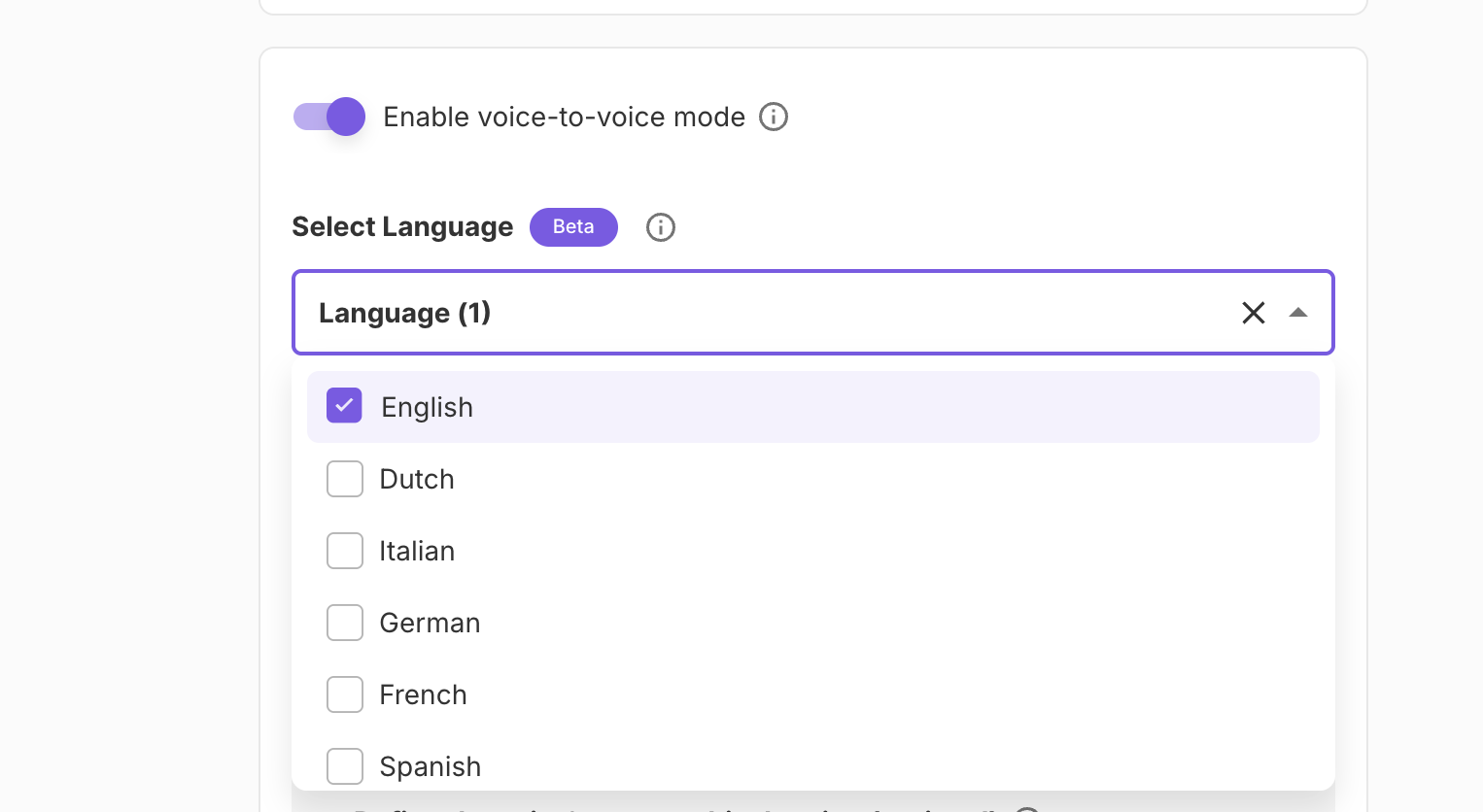
All AI-moderated interviews on Qualz are real-time voice interviews — the AI moderator listens and speaks in the language you pick. There is no separate "Standard vs Advanced" toggle to enable; voice is always on.
- Select Interview Language — Choose the language your AI moderator will use. The Qualz.ai platform supports 20+ languages.
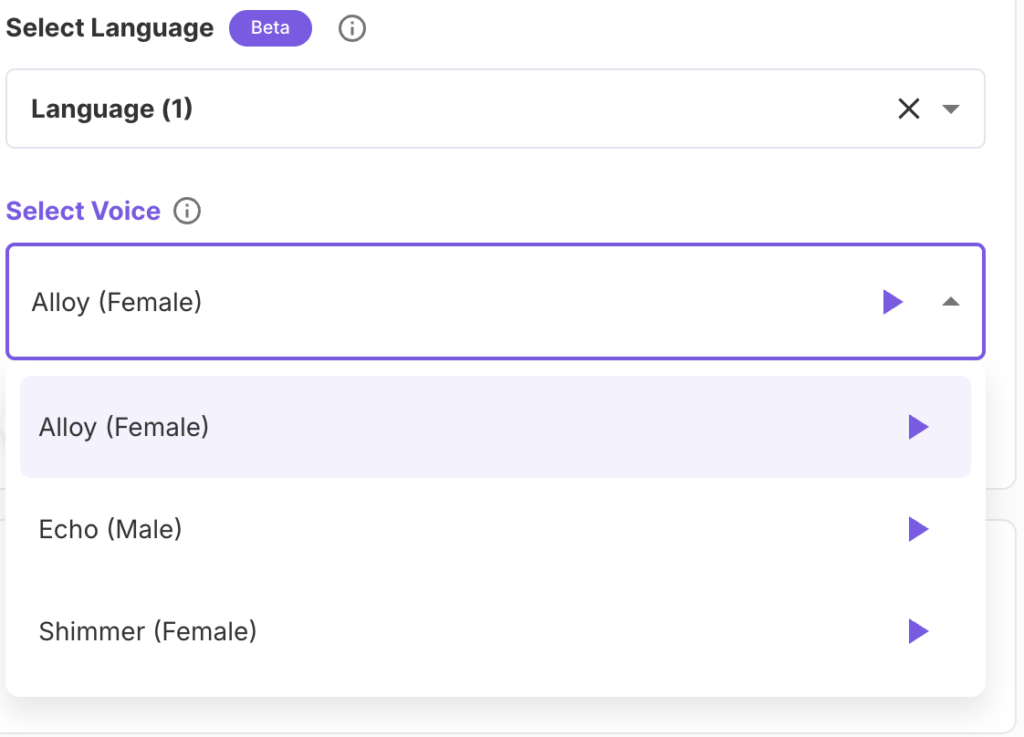
Personalize the AI Voice Play and select the voice with which you’d like to moderate the interview. This voice attribute is applicable only for the English language.
Advanced Thinking AI
Enable Use advanced thinking AI for this interview if your interview guide is long or complex.
- The advanced-thinking model handles complex guides and multi-part questions better than the default model.
- Trade-off: it takes around 2–3 seconds to reply after each participant answer, so use it only when your guide's complexity warrants the extra wait. For most short, focused interviews the default model is a better fit.
Participant Camera Settings
Control whether participants can use their camera during interviews. This is separate from interview recording (which is always enabled for AI-moderated interviews).
-
Allow participant camera — Toggle this to let participants use their webcam during the interview. When disabled (default), the interview is audio-only and participants cannot turn on their camera.
-
Camera default behavior — When camera is allowed, choose whether it starts on or off:
- Off by default — Camera starts off. Participants can enable it anytime during the interview.
- On by default — Camera starts on. The participant's browser will request camera permission when the interview begins.
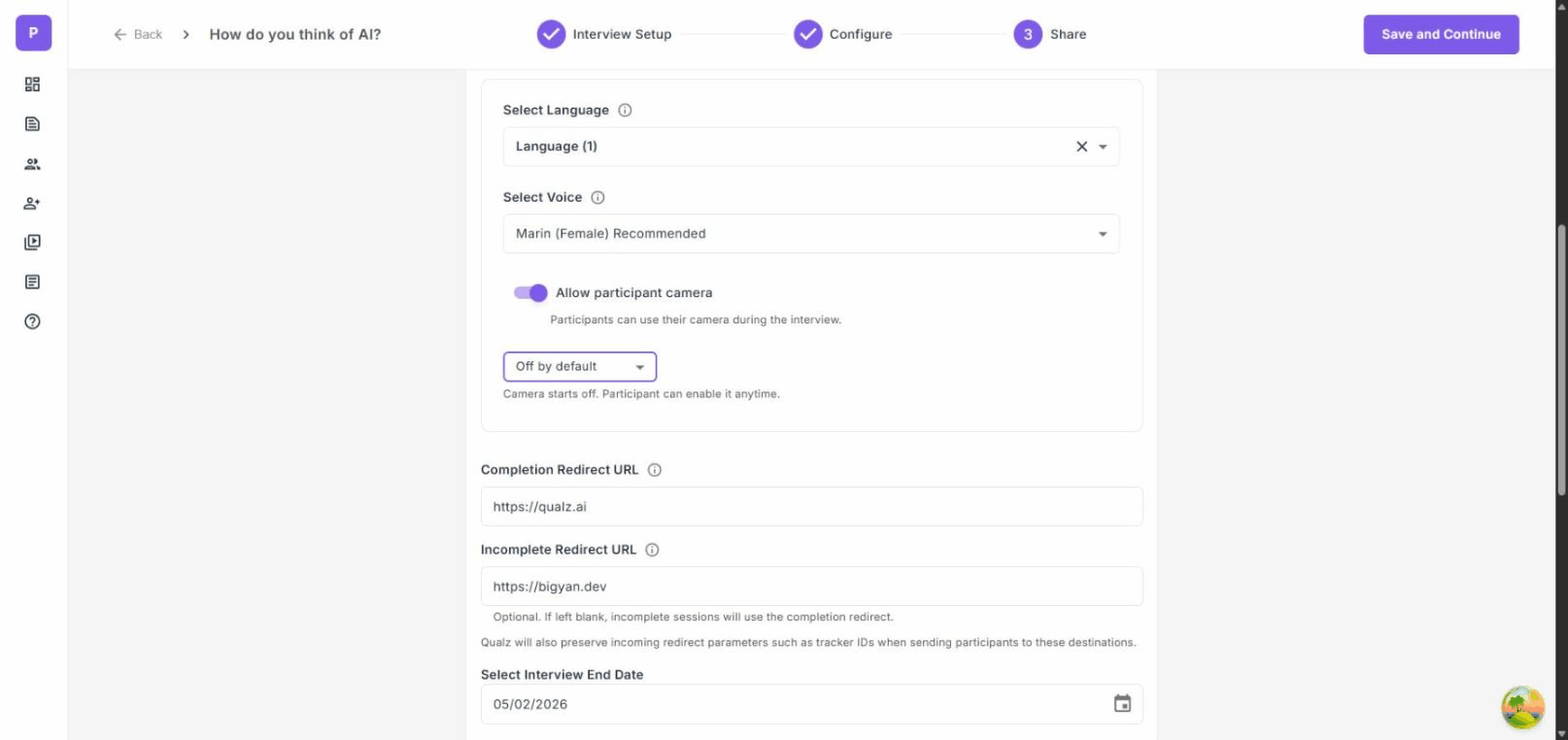
Tip: Use "Off by default" when you want to give participants the option without pressuring them. Use "On by default" for studies where facial expressions and body language are important to your research.
Study Settings
-
Number of Participants — Enter the number of participants you want to include in the study. This helps in managing and tracking your study progress.
-
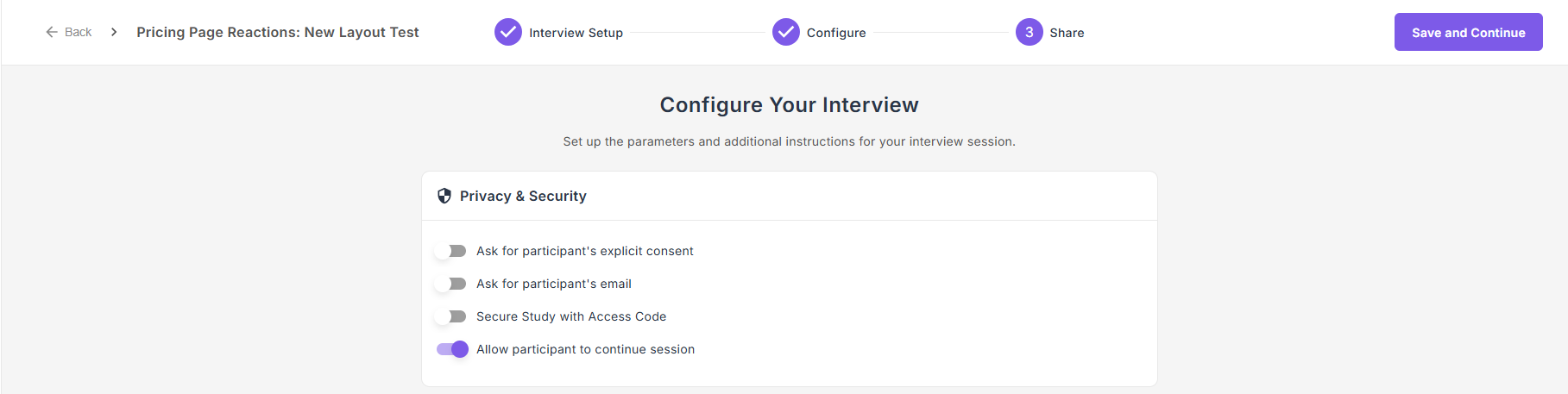
Allow participant to continue session — When ON, you can reinvite a participant who left their interview early. They get a resume link on their thank-you screen, and you can copy a fresh reinvite link from the transcript actions menu. When OFF (default), interviews are one-shot — once a participant leaves, the session can't be continued. See Reinviting Participants for how the resume flow looks on the researcher side.
-
Redirect URL — Provide a link to redirect participants after they complete the interview (e.g., your company website or a thank-you page).
-
Incomplete Redirect URL (optional) — Fallback destination if a participant exits early or the interview is marked incomplete. If left blank, incomplete sessions use the completion redirect above. Qualz preserves incoming redirect parameters (like tracker IDs from a panel provider) when sending participants to either destination — useful for panel integrations. See Tracker ID & Panel Integration.
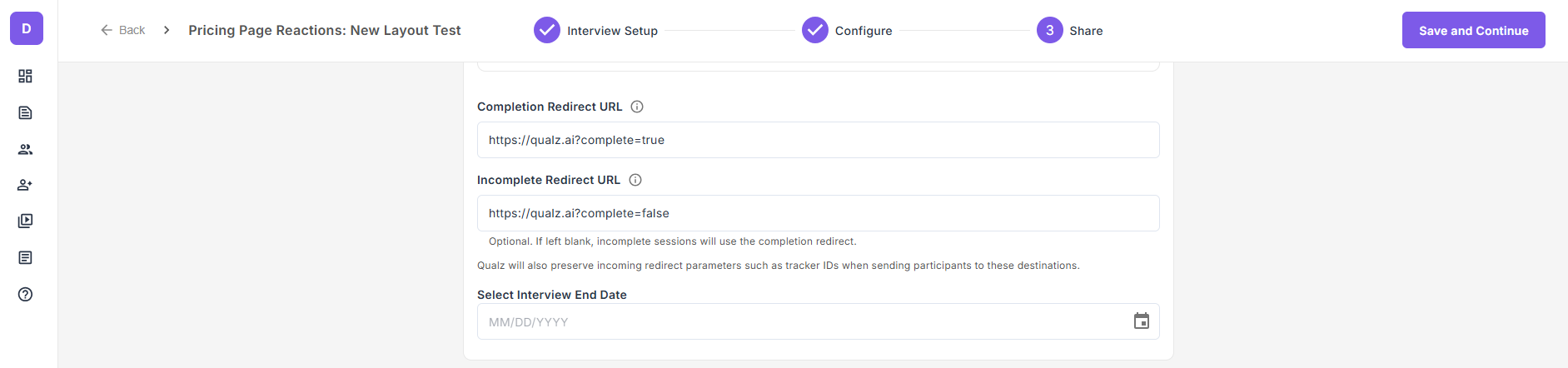
- Select Interview End Date — Set a specific closing date for your interview to control when it stops accepting responses.
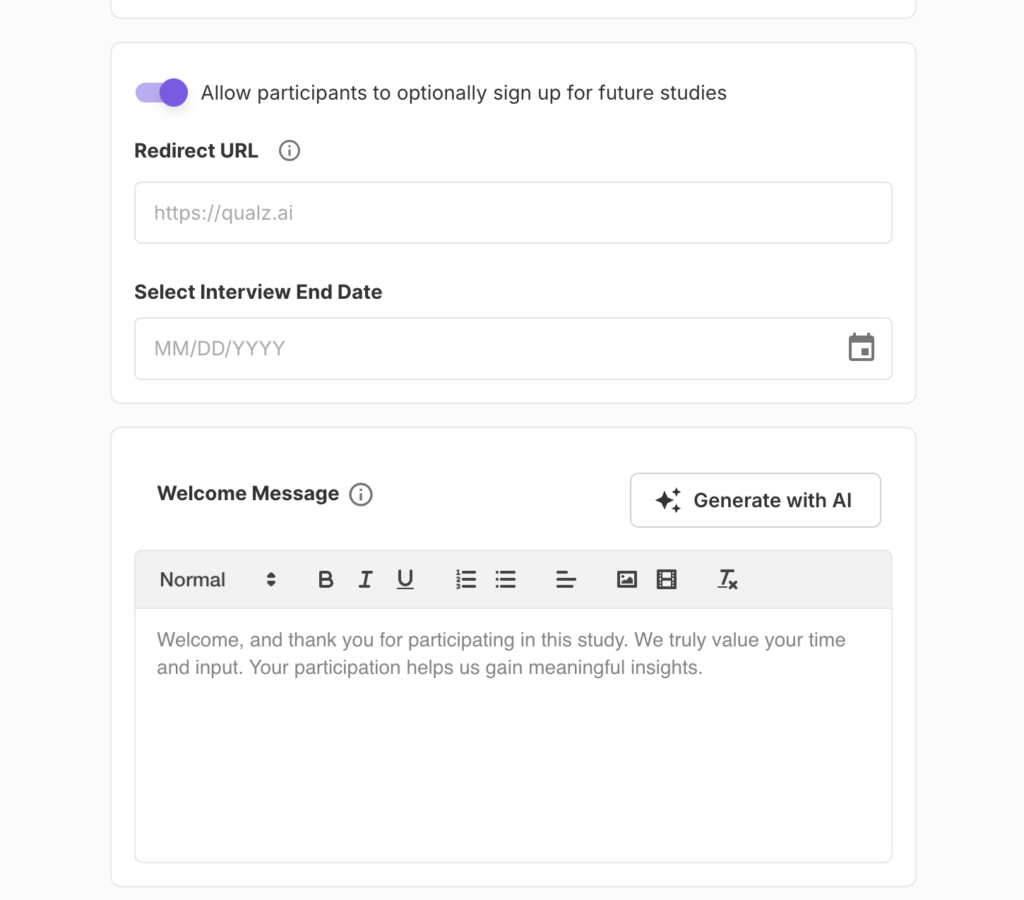
- Welcome Message — Write a friendly, concise message that participants will see at the start of the interview. The welcome message editor supports rich text formatting and you can embed images, videos, or any other media to help set context for participants. Click Generate with AI to create a welcome message automatically.
Once all your settings are in place, click Save and Continue to proceed to the final Share step, where you can distribute your interview study.
Need help configuring your study? Our team can walk you through language settings, voice selection, and access controls to match your research needs. Book a call →