How to Share an Interview Study with Participants?
Learn how to share your AI-moderated interview study with human or AI participants.
Share your Study
• Distribute your interview questions to participants using various methods:
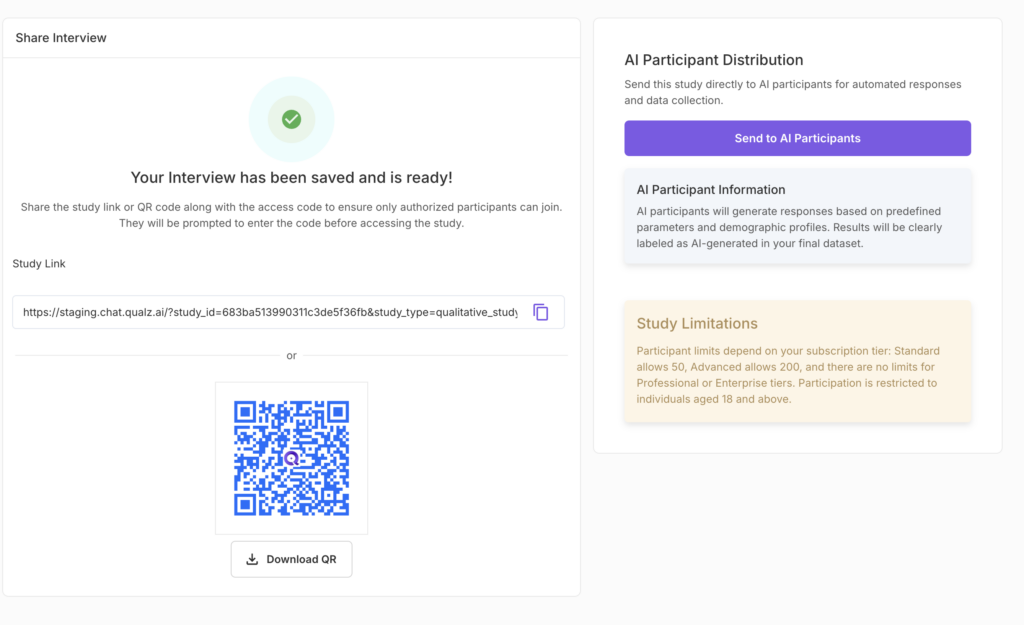
Study Link • Copy the study link provided • Click the clipboard icon to easily copy the link and share that link to your participants.
QR Code • Participants can scan the QR code to access the interview. • Click Download QR to save and print or share it digitally.
Access Code • If you have configured to set access, this will appear Find the unique 6-digit access code (e.g., 464331). • Share this code with participants—it’s required to access the study.
Send to Participants
Below the link + QR code cards, the Send to Participants card lets you invite both human participants (by email) and AI participants from the same place. The same unified card is used across surveys and AI-moderated interviews — so the invite experience is consistent.
- Invite humans by email — paste a list of email addresses and Qualz sends each participant a personalised study link. Track sent / opened / completed on the same page.
- Send to AI participants — pick from an existing pool of AI participants, or generate a new pool for this study. AI responses are based on the participant profiles you configure and are labelled as AI-generated in your final dataset. Useful for pilot testing your interview guide or supplementing real participant data.
Whichever route (or mix) you use, monitor responses from your dashboard and start analyzing insights as they roll in.
Need to configure or edit your study? Go back to the Configure tab to make changes.
Reinviting Participants
If a participant's interview was interrupted or incomplete, you can generate a resume link to let them continue where they left off.
Before you can reinvite: the study must have "Allow participant to continue session" enabled in the Configure step. If the toggle is OFF (default), the reinvite action is disabled — interviews are one-shot until you turn resume support on.
How to reinvite a participant:
- Go to the Transcripts tab in your study.
- Click the three-dot menu (⋯) next to the participant's transcript.
- Select Reinvite Participant.
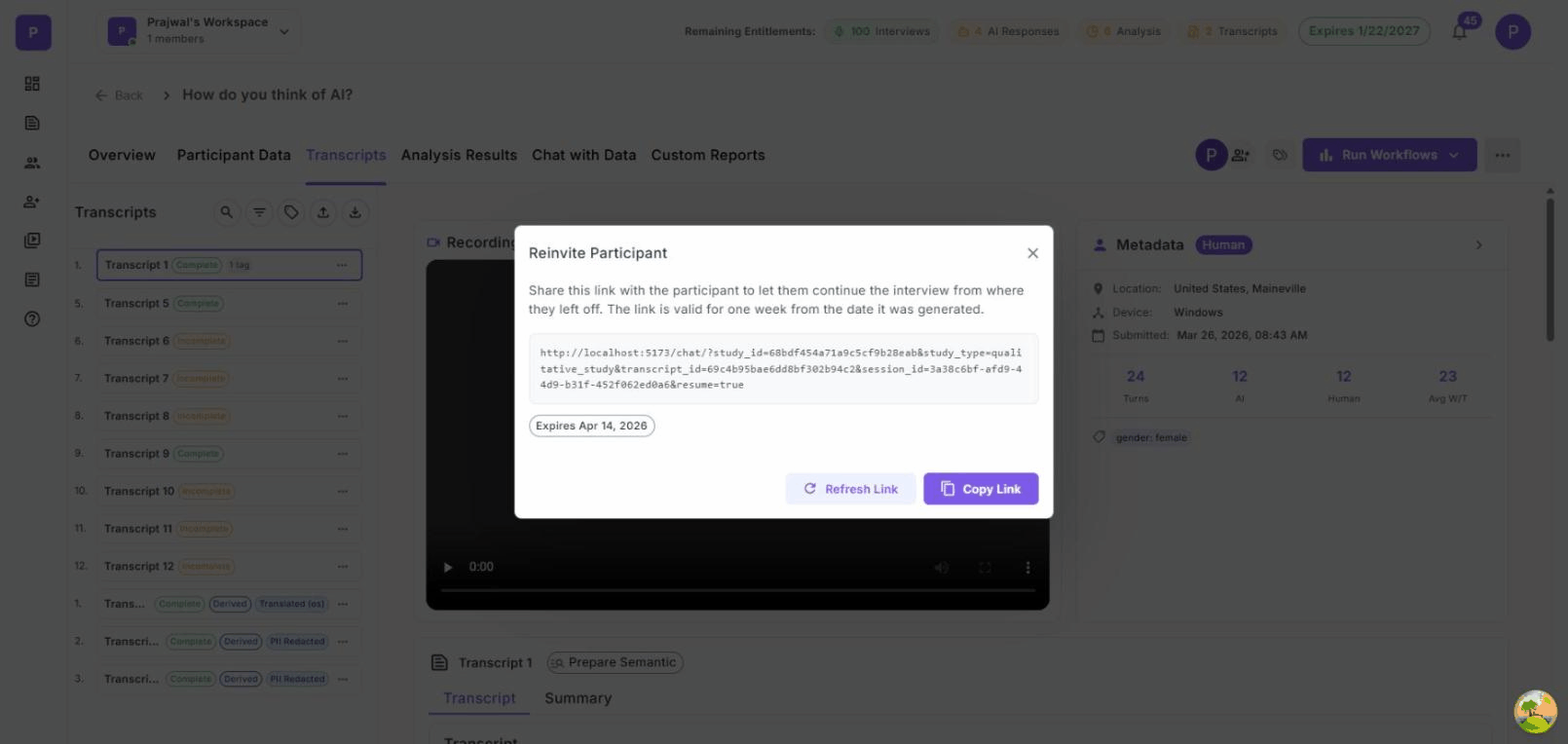
- A modal appears with a resume link and its expiry date (one week from generation).
- Click Copy Link to share it with the participant.
Key details:
- Resume links are valid for one week from the date they were generated.
- If a link has expired, click Refresh Link to generate a new one (this invalidates the old link).
- When the participant opens the link, the interview resumes from where they left off with a "Welcome back" message.
- Each participant gets their own unique session link.
Looking for participant recruitment support? We can help you find and recruit the right participants for your interview study. Book a call →