Show a Video or PDF Before the Interview Starts
Some studies need every participant to see the same thing before they answer a single question — a product pitch, a training video, a document, a concept film. The Pre-Interview Stimulus Screen shows that media as the first thing a participant sees, and holds the interview closed until they have actually been through it.
This matters because feedback is only comparable if everyone was exposed to the same material. A participant who skipped to the end of the video is answering a different study.
What it does
- Shows a video or PDF before the welcome message, ahead of any question.
- Keeps the Proceed with interview button locked until the media has been viewed.
- For video, prevents skipping ahead. Rewinding is always allowed.
- Remembers progress, so a participant who drops out and returns is not made to watch it again.
Step 1: Turn it on and upload your media
Open your interview study and go to the Configure step of the setup flow. Scroll to Pre-Interview Stimulus Screen and switch the toggle on.
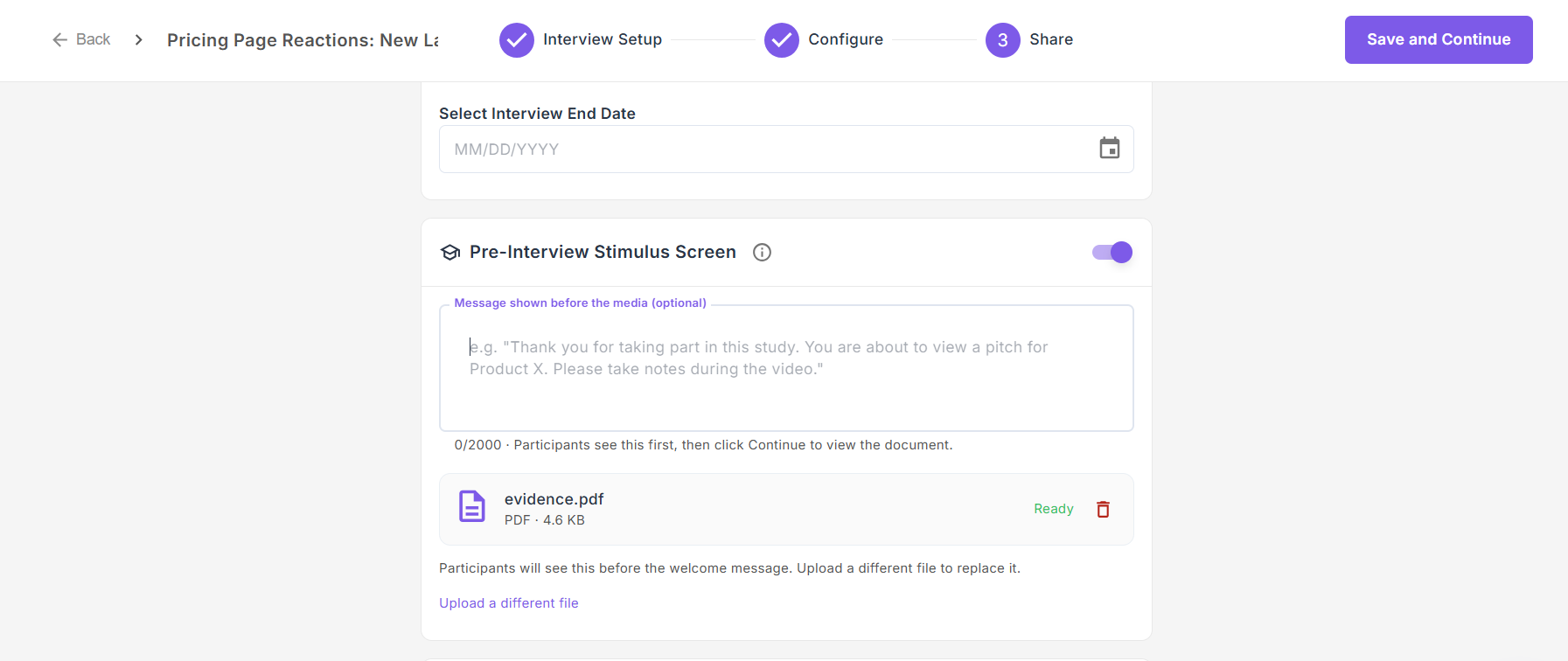
Upload either a video or a PDF. Once the file has finished processing it is marked Ready, and only then will participants see it. You can swap the file at any time using Upload a different file.
The optional message appears above the media. Use it to set expectations — why they are being shown this, and what to pay attention to. The placeholder gives the idea: "Thank you for taking part in this study. You are about to view a pitch for Product X. Please take notes during the video." You have 2,000 characters.
Step 2: What the participant sees
The participant opens your interview link and lands here first, under the heading Before we begin.
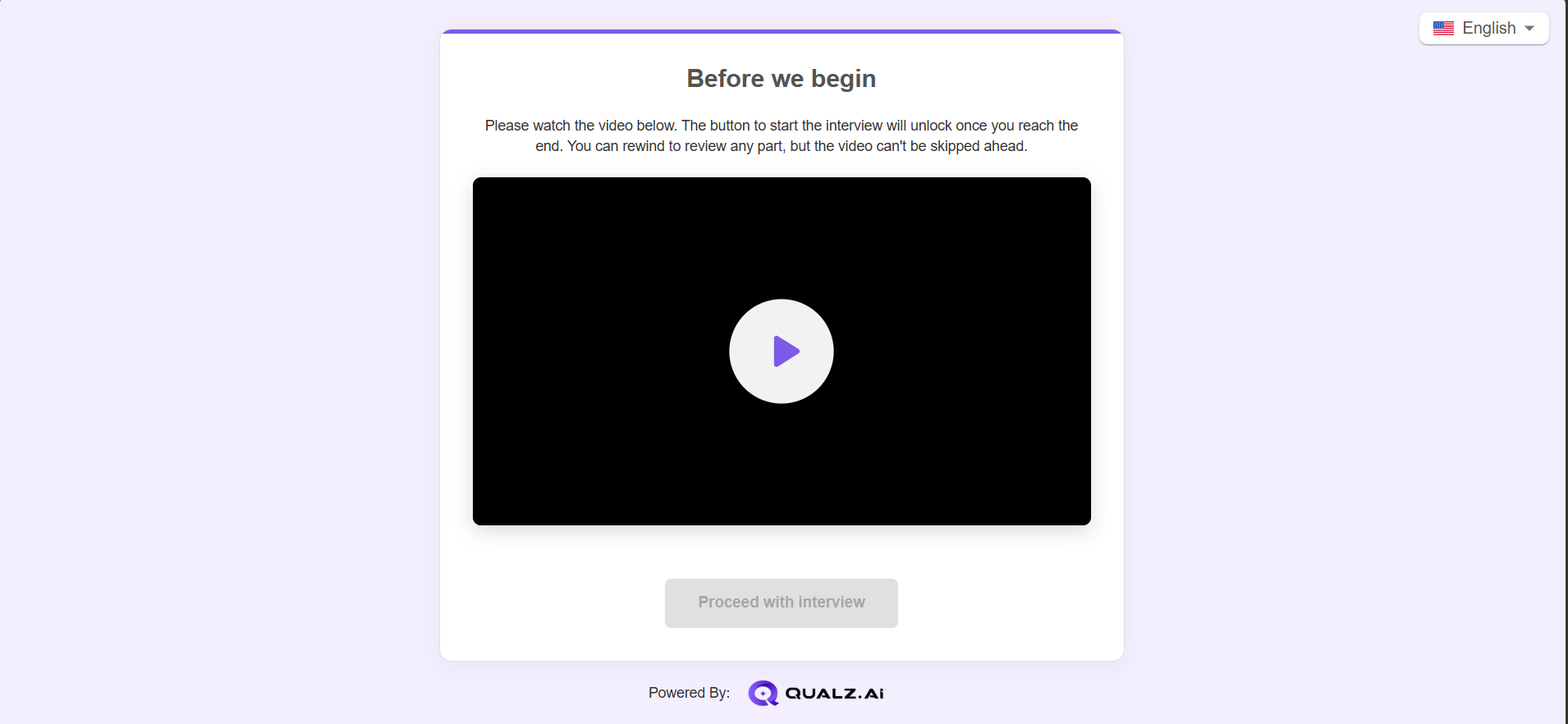
Notice the Proceed with interview button is greyed out. The screen tells them exactly why: "Please watch the video below. The button to start the interview will unlock once you reach the end. You can rewind to review any part, but the video can't be skipped ahead."
There is no ambiguity for the participant, and no way to reach the interview without going through the media.
Step 3: The button unlocks
Once the video reaches the end, Proceed with interview turns active and the participant continues into the interview as normal.
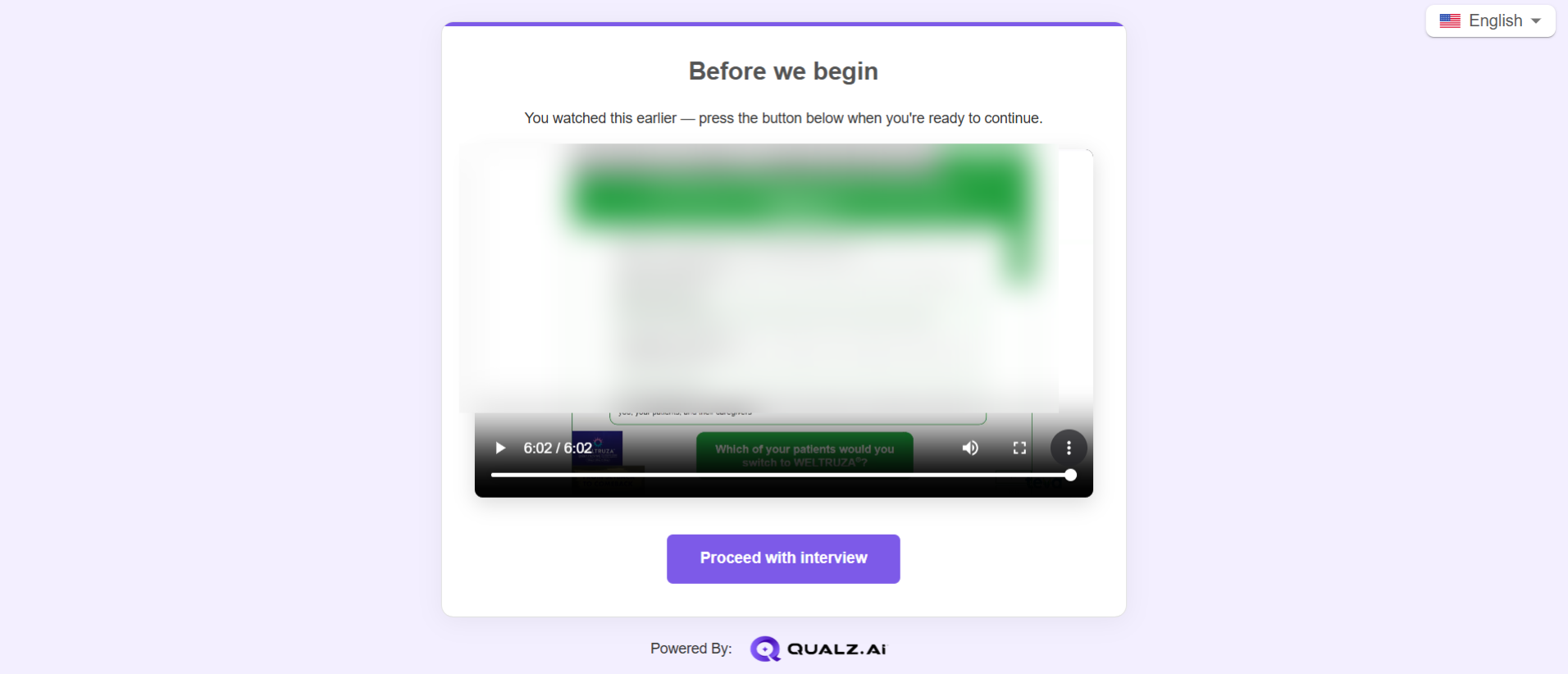
The screenshot above shows a participant who is returning — the message reads "You watched this earlier — press the button below when you're ready to continue." Progress is remembered in their browser, so someone whose connection dropped, or who closed the tab and came back, is not forced to sit through it a second time. If they left partway through, they resume from where they stopped rather than starting over.
How the lock works for each media type
| Media | Unlocks when |
|---|---|
| Video | The participant reaches the end. Skipping forward past the furthest point watched is blocked; rewinding is always allowed. |
| A short minimum viewing time has passed, giving them a chance to read rather than click straight through. |
Video is the stricter of the two. A PDF cannot be checked for genuine reading, so the gate there is time-based.
Practical notes
- Upload the exact asset you want tested, and keep a record of the version. Everyone sees the same file, which is the point — but it also means swapping the file mid-study splits your sample across two stimuli.
- Video is processed after upload. It will show as processing briefly before it becomes Ready. Upload well ahead of sharing the link.
- This is not the same as stimulus images. The pre-interview screen shows one piece of media up front, before any question. Stimulus images attach to individual questions and appear mid-conversation as the AI moderator asks about them. Many studies use both — a film first, then specific images at the questions that discuss them.
- Consider what happens if someone will not watch. There is no partial path: without viewing the media they cannot reach the interview. If your study needs an alternative route for participants who decline, plan that outside the platform.
Related guides
- How to Use Stimulus Images in Interviews — showing images during the conversation
- Configure Interview Study — the rest of the Configure step
- How to Share an Interview Study with Participants — getting the link to participants