Upload Your Data: Existing Interviews, Audio, Video, and Transcripts
You don't have to collect your data on Qualz.ai to use Qualz.ai. If you already have interviews — recorded calls, video sessions, or transcripts written elsewhere — upload them and run the same transcription and analysis you would get from a study run on the platform.
This guide walks through the whole flow: the two steps that come before any file is chosen, which upload tab to use, how PII redaction works at upload time, and what happens once you press Done.
Step 1: Open Upload Your Data
Go to Interviews in the left sidebar. Upload Your Data sits in the top right, next to Create.
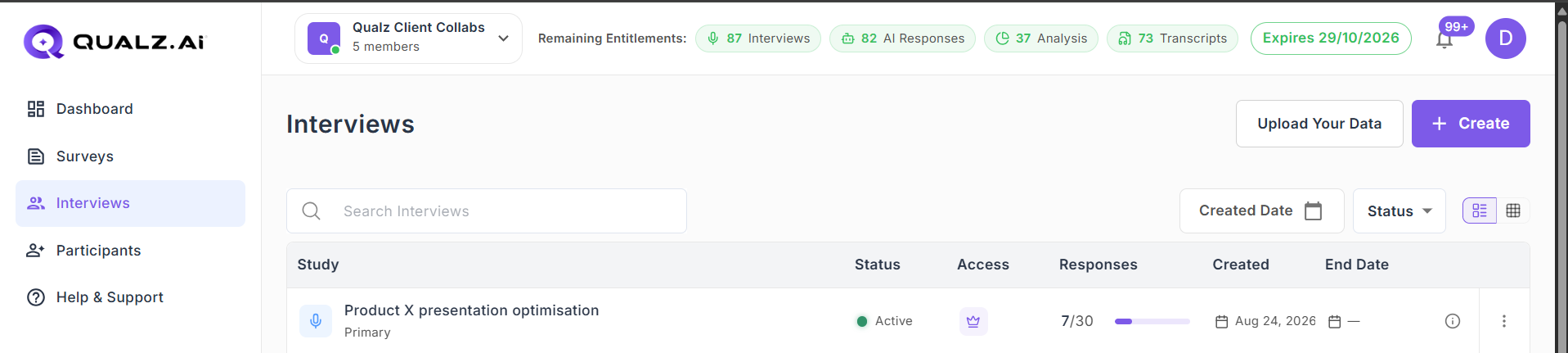
This opens a three-step wizard — Study Details, Research Questions, Upload Files — shown as a progress bar across the top. Continue and Cancel sit in the top right; on the last step Continue becomes Done.
Files come last, and deliberately so. The first two steps create the study that will hold them, and they set the context every later analysis reads. Cancelling partway discards the lot, so the wizard asks you to confirm.
Step 2: Describe the study
The first screen asks Tell us about your study. Both fields are required.
- Interview Title — how the study appears in your Interviews list. Something you will recognise in six months: Customer Experience Study Q1 2024, not Uploads.
- Objective of the Study — what you are trying to find out. This is not filing metadata. It is passed to the model during analysis, alongside every research question, when codes are defined and summarised. A vague objective produces vague definitions.
The screen's own tips are the right ones: be specific about who you spoke to, name the topics you want explored, and mention any outcome you are measuring.
Press Continue.
Step 3: Set your research questions
These are the questions the analysis will try to answer from your transcripts. At least one is required.
You have two ways to fill them in:
- Type or paste your own. Use + Add Question for each one. If you already have a research plan, this is usually faster and always more accurate.
- Generate with AI. Qualz.ai drafts a set from the title and objective you just entered. They arrive fully editable — change, delete, or add to them.
Generating replaces whatever is in the list. Anything you typed before pressing it is overwritten, so generate first and edit second, not the other way round.
Questions are not a label you attach and forget. They become focus areas when analysis runs: Qualz.ai searches your transcripts for evidence that answers each one, and the questions are given to the model when it defines and summarises each code. Specific questions produce targeted analysis; broad ones produce broad analysis.
Press Continue. The study is created at this point, and the upload panel opens.
Step 4: Pick the right tab
The upload panel opens on four tabs — Text, Audio, Video, Document — and choosing correctly matters, because they do different things.
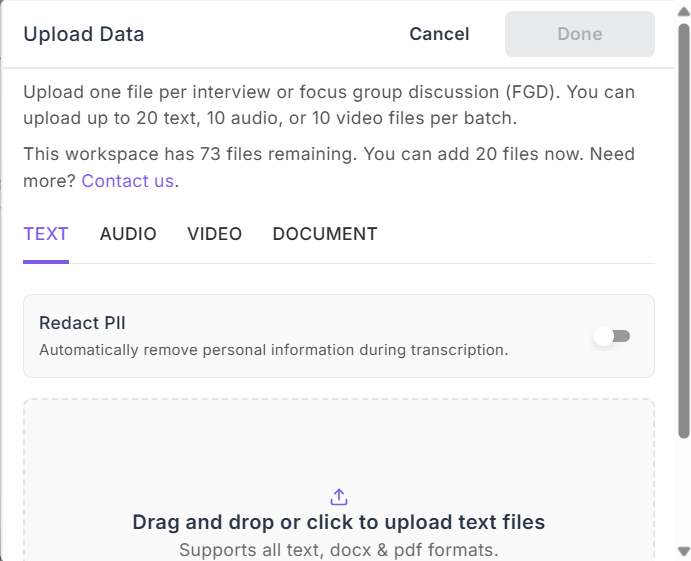
| Tab | Use it for | Formats | Limits |
|---|---|---|---|
| Text | A transcript of a conversation you already have in writing | txt, docx, pdf | 50 MB per file · 20 per batch |
| Audio | A recording that still needs transcribing | mp3, mpeg, wav, ogg, m4a, flac, aac | 500 MB per file · 10 per batch |
| Video | A recorded session that still needs transcribing | mp4, webm, avi, mov, mkv | 2 GB per file · 10 per batch |
| Document | Reference material that is not a conversation — a report, article, brief, or protocol | pdf, docx, txt | 50 MB per file · 10 per batch |
Text and Document both take PDFs, and they are not interchangeable. Text treats the file as a conversation between speakers, and it becomes a transcript you can analyse. Document stores the file as supporting material, extracts its text so you can read it inside the study, and skips transcription and speaker detection entirely. Put an interview transcript on Text; put the discussion guide or a background report on Document.
One file per interview. The panel says it plainly: upload one file per interview or focus group discussion. Combining several sessions into a single file makes them one transcript, which distorts every count and theme downstream.
Watch the remaining-files line. Above the tabs, the panel tells you how many files your workspace has left and how many you may add in this batch. Uploads consume transcript entitlements, so a large archive may need several batches, or more capacity.
Step 5: Decide about PII redaction — before you upload
Redact PII is a toggle at the top of every tab, and it is worth pausing on, because doing it here is not the same as doing it later.
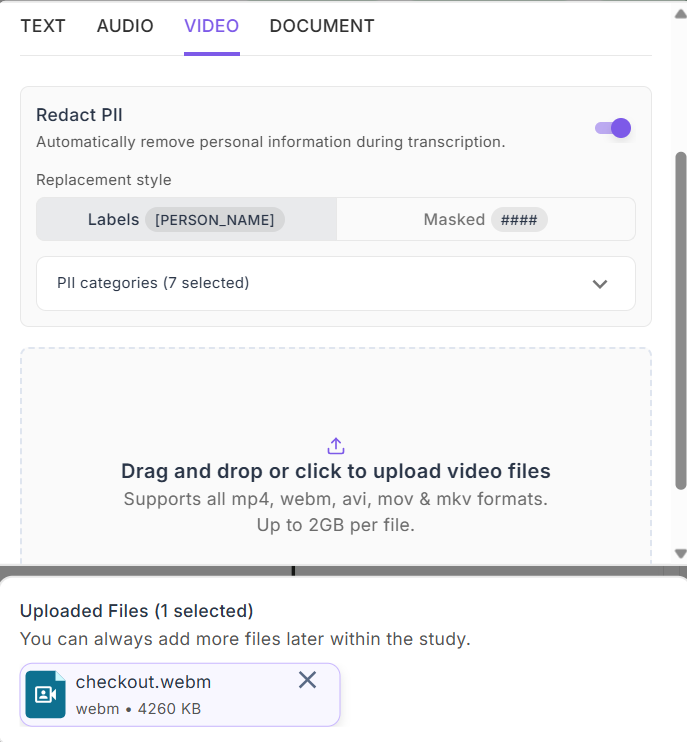
Switching it on reveals two settings:
- Replacement style — Labels substitutes a readable tag such as
[PERSON_NAME], so you can still tell what kind of thing was removed. Masked replaces it with####. Labels usually reads better in analysis; masked hides even the category. - PII categories — choose which kinds of information to strip. Seven are selected by default; open the dropdown to add or remove.
Redacting at upload means the personal information never reaches the stored transcript, so nothing downstream — analysis, themes, quotes, exports — ever sees it. Redacting afterwards through Transcript Workflows produces a clean derived copy but leaves the original intact. If your governance requires that raw identifiers were never stored at all, use the toggle here.
Step 6: Add your files and press Done
Drag files onto the drop zone, or click to browse. Each accepted file is listed under Uploaded Files with its format and size, and you can remove any of them before committing.
You do not have to load everything now — as the panel notes, you can always add more files later within the study. Press Done to start processing.
Step 7: Track progress in notifications
Transcription runs in the background, so you can leave the page and carry on working. Progress appears in the notifications panel, under the bell icon in the top bar.
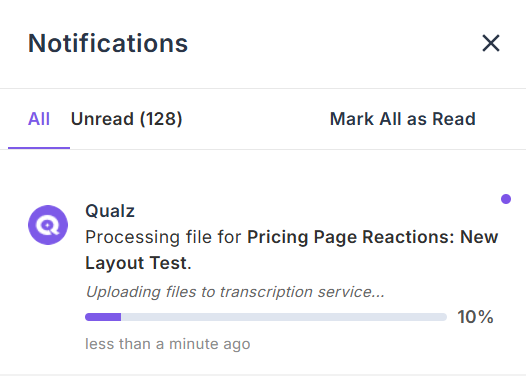
Each file reports its own progress against the study it belongs to. Long recordings take a while — a multi-hour session is doing real work — and nothing is lost if you navigate away.
Once processing finishes, the transcript appears in the study's Transcripts tab and behaves exactly like one collected on the platform. You can read it, run analysis, apply transcript workflows, or export it.
Getting good transcripts
- Source audio quality decides transcript quality. Nothing downstream recovers what the microphone missed. If a recording was made over a noisy line, run Enhance Transcription afterwards.
- Split very long sessions. There is no hard duration cap, but sessions beyond about three hours are better uploaded in parts — processing is faster and the transcripts are easier to work with.
- Normalise speaker labels in written transcripts. If you are uploading text, consistent labels such as
InterviewerandParticipant 1make speaker-aware analysis cleaner. - Upload first, organise later. Get the batch in, then tag and filter from the transcripts list.
What it costs
Each uploaded file consumes one transcript entitlement, whether or not it needed transcribing — a written transcript counts the same as a two-hour video. Analysis run afterwards consumes analysis units separately.
See What are Entitlements? and How Entitlements Work, or buy more capacity for a large archive.
Uploading survey data instead?
If your existing data is survey responses rather than interview transcripts, see Upload and Analyze Your Existing Survey Data.
Related Guides
- Transcript Workflows: Translation, Redaction & Enhancement — post-process uploaded transcripts
- How to Analyze Interview Data — run multi-lens analysis on uploaded transcripts
- Managing Interview Sessions & Recordings — organise uploaded sessions in your study