Deep Research
Deep Research
Deep Research is Research Guide's structured-report mode. Instead of a quick chat answer, it runs a full evidence-backed report against your attached studies — with quantified findings, direct quotes, and inline charts drawn from the real numbers. Use it when you want a stakeholder-ready report, not a one-line answer.
When to use Deep Research (and when not to)
Deep Research is slower and more expensive than regular chat. A single question can take anywhere from a few minutes to a few hours, depending on how much transcript data has to be reviewed. Reach for it when the question deserves the effort:
- Use it for: structured reports on top themes with quantified findings, cross-study syntheses, contradictions across studies, longitudinal comparisons (Q1 vs Q2, pre- vs post-launch), any question where you want charts drawn from the actual data.
- Skip it for: "how many respondents picked X?", "show me the verbatim answers to Q4", "what did p_129 say about pricing?" — those are exactly what regular chat is for. Answers come back in seconds, still cited, still quote-grade.
If you're not sure, start in regular chat. Flip Deep Research on when the follow-up needs to be a report.
Turning it on
Deep Research is a per-workspace admin flag. If your workspace has it enabled, the toggle appears on the right of the second composer row.
- Attach at least one study.
- Flip the Deep Research toggle to ON. The toggle glows and a subtle hint sits below the composer confirming the next message will run as a Deep Research turn.
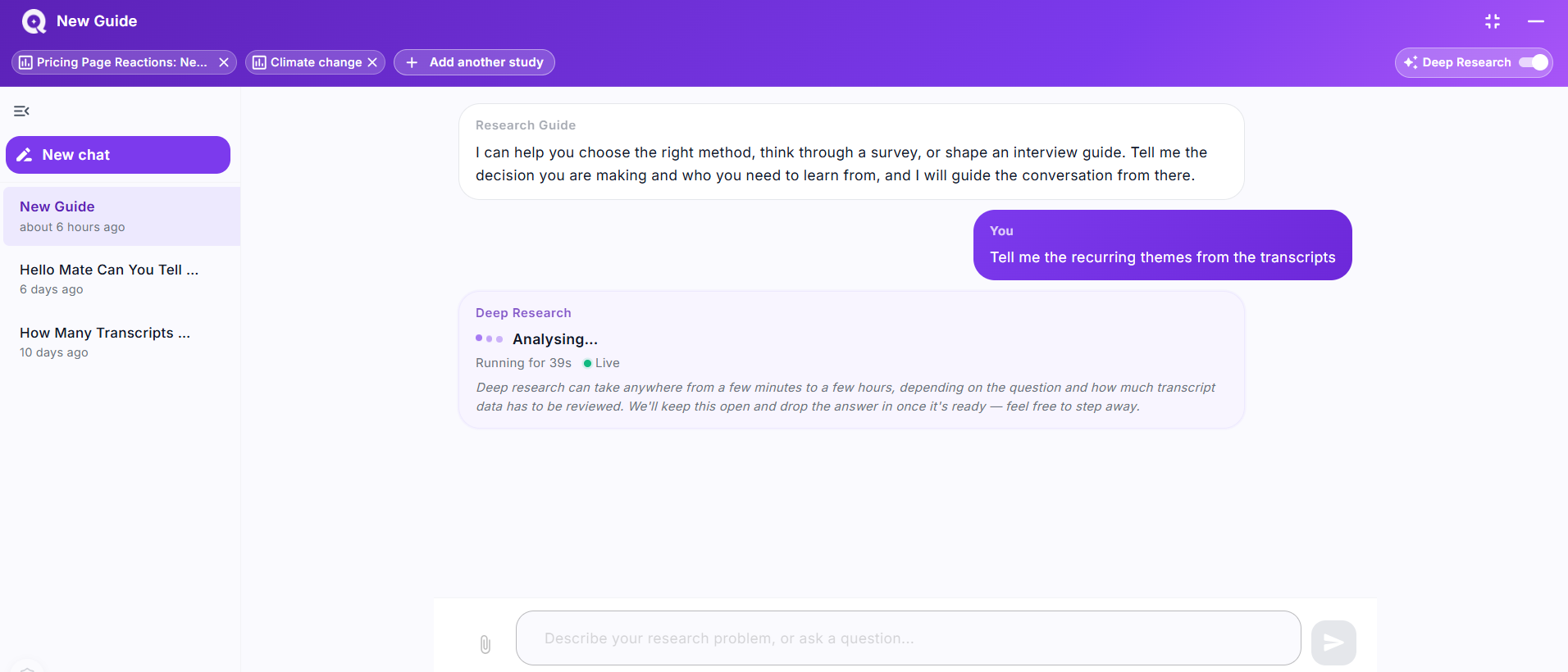
- Type your question and send. A placeholder card appears in the chat with the current phase (Preparing → Analysing → Saving result), a heartbeat dot that stays green while updates are landing (amber if updates slow down, red if they stop), and a live "Running for…" timer.
- Step away if you want. The placeholder pulses in-place; the finished answer replaces it whenever it's ready.
If your workspace doesn't have Deep Research enabled yet, the toggle shows a tooltip: "Deep Research isn't enabled for this workspace yet. Email service@qualz.ai to request access."
What Deep Research unlocks that regular chat doesn't
- Analyse up to 5 studies together. Attaching more than one study is only allowed when Deep Research is ON — the regular-chat path is single-study. With Deep Research, you can attach any mix of surveys and interviews (up to 5) and ask a cross-study question. See Attaching a study.
- Attach supporting documents. The paperclip in the composer only activates when Deep Research is on. Attach PDFs, DOCX, TXT, or images to give Deep Research extra framing — a client brief, a competitive analysis, a prior report. Regular chat has no need for this; the answers come from your attached studies alone.
- Longer, structured answers. Deep Research is prompted to produce a report shape — executive summary, quantified findings, quoted evidence, methodology notes — rather than the short, conversational answers regular chat returns.
Inline charts, built from your real numbers
When a question calls for a visual — top themes ranked, category distributions, participant breakdowns, cross-study comparisons — Deep Research writes actual bar, pie, and distribution charts into the report using the numbers from your attached studies. No stock images, no rough sketches — every axis label, slice, and bar height comes from the real data.
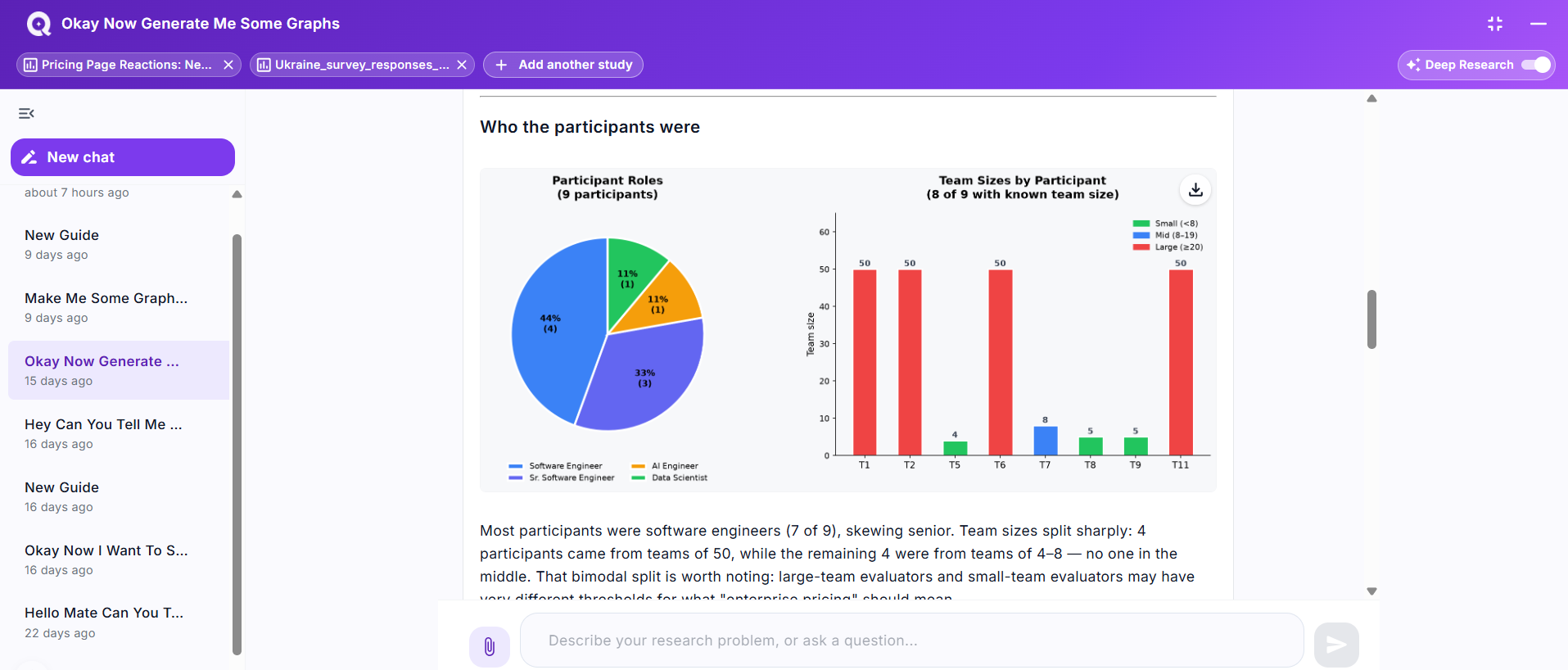
- Charts render inline in the answer, right where they belong in the narrative — so a finding and the visual that supports it sit together instead of getting separated across a report and an appendix.
- Every chart has a download button in the top-right corner. Click it to grab a PNG you can drop straight into a slide deck or a client-facing report.
- Multiple charts can appear in one reply. In the example above, Deep Research pulled out both a role breakdown and a team-size distribution because both were needed to characterise the participants.
- The narrative text below each chart is Deep Research's own interpretation of what the chart shows — so you get "Most participants were software engineers (7 of 9), skewing senior" alongside the pie chart, not just the pie chart on its own.
You don't have to ask for charts explicitly — if a finding is naturally quantitative, Deep Research chooses the chart shape that fits and includes it. You can also request specific visuals: "Chart the theme frequencies as a bar chart" or "Show the pre- vs post-launch split as two side-by-side pies".
Verify every quantified claim
Deep Research doesn't just quote a number and move on — every quantified phrase in the reply ("11 of the 28 respondents", "3/6 mentioned pricing", "three participants said…") becomes a hover-triggerable link that shows you the exact quotes it drew the number from.
- Hover a claim to see a lightweight preview: the first two supporting quotes with their source labels (T3, R12, Smith-market-report), plus a hint of how many more sit behind it.
- Click the claim to open a full modal listing every supporting quote for that claim, each attributed to its participant or respondent, with the source path so you can trace back to the original transcript or survey response.
- Download the evidence appendix from the chip at the bottom of the reply. Every quantified claim in the report gets its own section in the PDF — the claim text at the top, the count and denominator next to it, and every supporting quote listed below with its participant / respondent attribution. Print it, share it, drop it into a stakeholder pack.
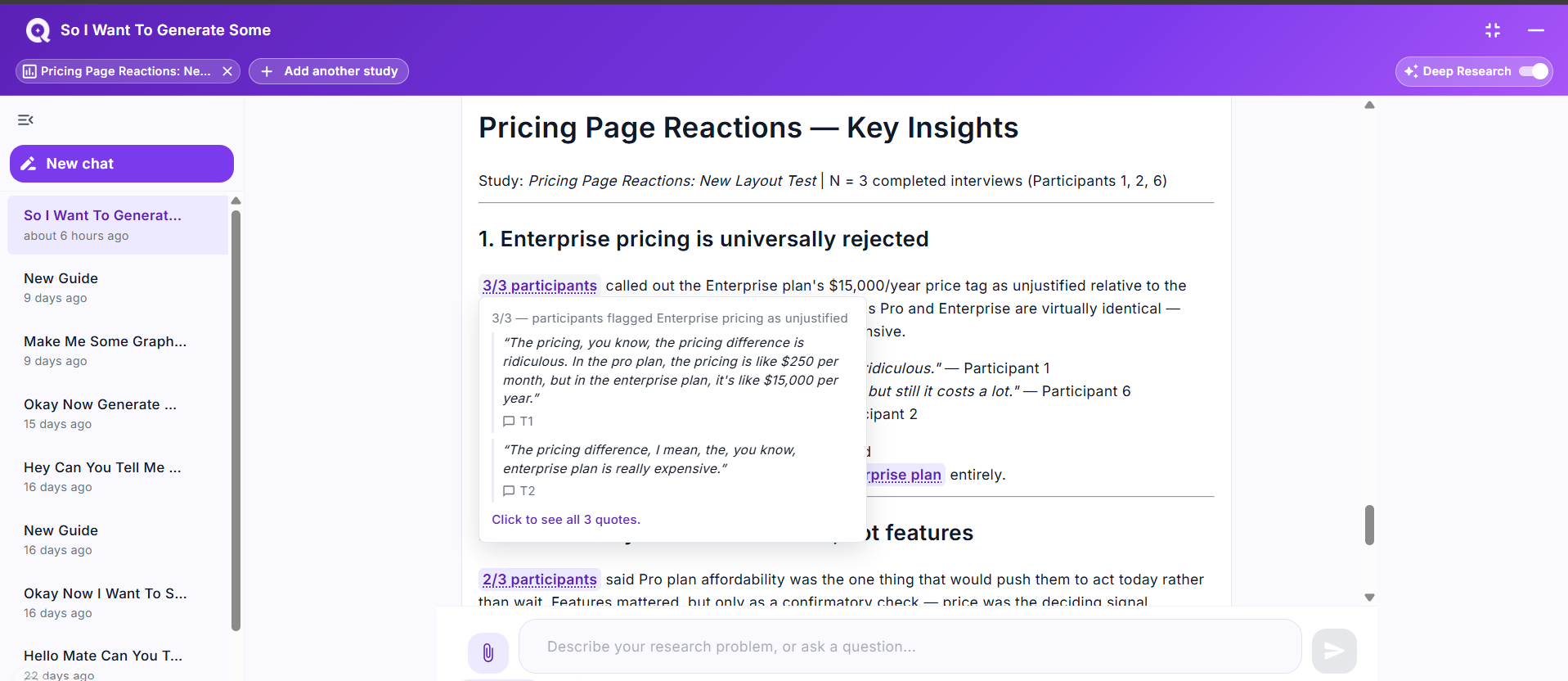
This is what makes Deep Research reports auditable. A claim like "12/58 respondents cited pricing as a barrier" isn't just something the model asserts — it's a promise backed by 12 specific verbatim quotes from 12 specific respondents, one hover away for anyone reading the report.
Downloadable files (CSV, PDF, JSON…)
Beyond inline charts, Deep Research can generate real files you can hand off to someone else without any conversion. Ask for it and the reply comes back with a download chip at the bottom.
- CSV — a coded-quotes export, a themes-frequency table, a per-respondent matrix. Opens straight in Excel or Google Sheets.
- PDF — the evidence appendix (see above), a themes-and-quotes handout, a structured report meant for print.
- JSON — machine-readable exports of the codebook, categories, themes tree — useful when you want to feed the analysis into a downstream tool.
- Other formats (Markdown, plain text) work too; the file type is inferred from the extension you ask for.
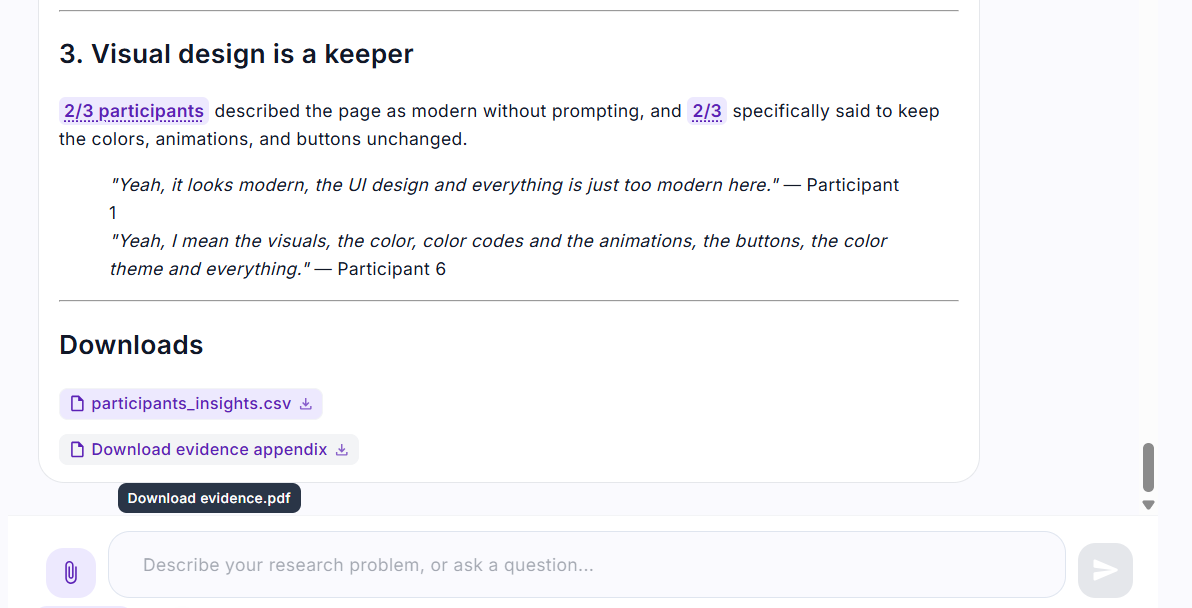
Each chip shows the filename, a file-type icon, and a download arrow. Click to save. Downloads keep working even after you close the chat or come back to the session later. Deep Research can also generate other file types the same way — JSON, TXT, Markdown, and anything else you ask for by extension.
Ask by naming the file you want, e.g. "Give me a CSV of every quote coded to 'pricing barrier' with the respondent id and the theme it maps to." or "Export the themes tree as JSON so I can import it into ATLAS.ti."
What to ask Deep Research
Framing matters. Deep Research does its best work on questions that deserve a report. A few starting points:
- "Generate an insightful, detailed report on the top themes with quantified findings."
- "What are the biggest contradictions between these two studies? Cite quotes on both sides."
- "Compare the Q1 and Q2 responses on onboarding. What moved, and what stayed the same? Chart the shift."
- "Summarise the key personas emerging across these three interview studies with representative quotes."
You can keep the conversation going after the report lands — ask a follow-up, request a chart, or ask Deep Research to reshape a section. The same session state carries forward.
While Deep Research is running
- The placeholder stays visible while the job runs. Elapsed time ticks on a 1-second interval; the phase label updates as Deep Research moves through stages.
- Heartbeat colour tells you the run is healthy — green ("Live") means updates in the last minute; amber ("Slow update") warns of a 60–90 second gap; red ("No update — checking") means the server is auto-checking whether the job is still alive.
- Because Deep Research runs on the server, you can close the panel, navigate to a different dashboard page, or refresh the tab. When you reopen the session, the placeholder is still there — or the finished answer is waiting.
Costs and limits
Deep Research consumes more Research Guide entitlement than regular chat because a single turn does the work of a small analysis run. The exact cost depends on how many studies are attached and how deep the question goes.
- Attach up to 5 studies per Deep Research session.
- File uploads via the paperclip are capped per session; the composer surfaces the exact reason if an upload is rejected.
Getting Deep Research for your workspace
Deep Research is enabled per workspace. If the toggle isn't available or you see the "Deep Research isn't enabled for this workspace yet" tooltip, email service@qualz.ai with your workspace name — we'll turn it on. See Enabling Research Guide for your workspace for the full access story.