Getting started & view modes
Getting started
Opening Research Guide
On any dashboard page, look for the purple Research Guide button in the bottom-right corner. Click to open it. It stays available across every page — you can navigate the dashboard and your conversation picks up right where you left off.
Three view modes
Research Guide works in three sizes, all sharing the same conversation. It remembers which size you prefer.
- Tucked away. A small button in the corner. Click to expand. Useful when you want the guide nearby without taking up screen space.
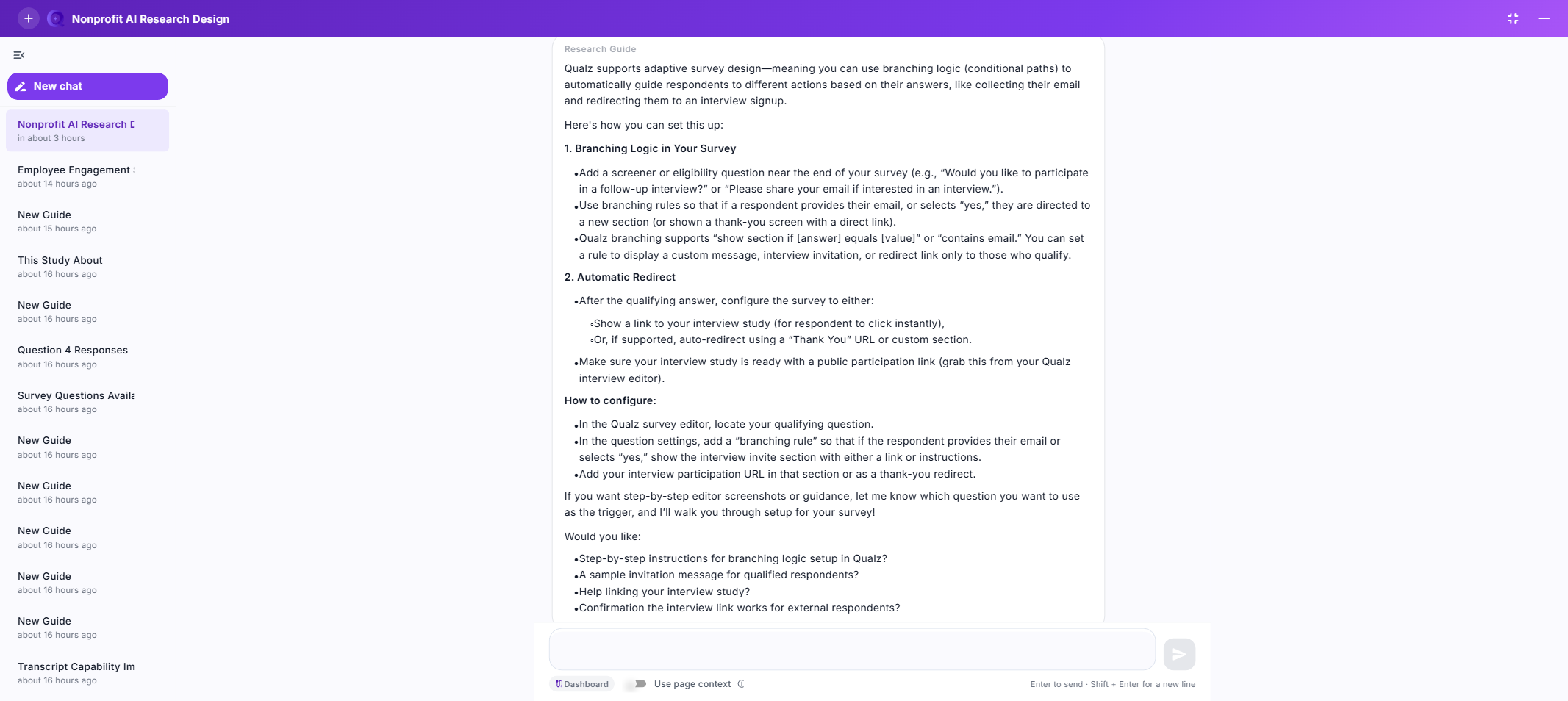
- Side panel. A panel on the right edge of the dashboard. Good for browsing a study page while the guide stays alongside.
- Full screen. Takes over the whole window for deep analysis, long drafts, or focus mode without the dashboard behind.
Switch sizes with the controls in the top-right of the panel.
What you unlock in your first ten minutes
- A living brief — decision statement, goal, audience, recommended method — that updates as you converse. No slide decks, no Google Doc back-and-forth with yourself.
- A conversation that stays with you, so you can resume days later from any device in the workspace.
- A cited answer to "survey or interview?" in the context of your problem, not a generic methodology article.
- The start of a draft the moment the brief is specific enough.
Your first conversation
When you first open Research Guide with no study attached, the panel greets you with a "Welcome to the Research Guide" hero and prompts you to Attach a study first. Attaching a study is what turns Research Guide from a general research partner into an assistant that can cite quotes, count responses, and reason over your data.
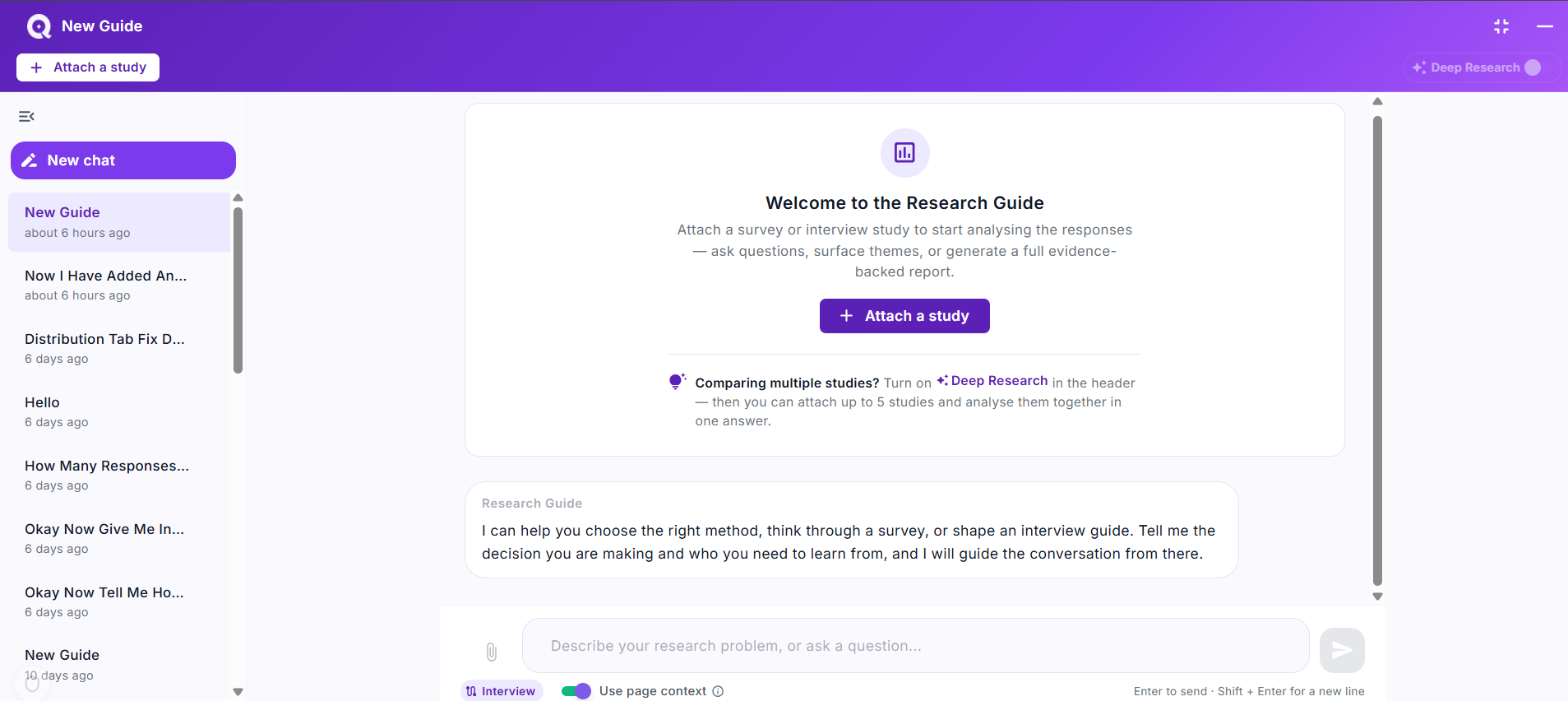
Once at least one study is attached, four starter prompts appear above the composer — the fastest way to get moving. Or just describe what you're trying to do in your own words; the guide asks focused follow-ups, pulls from the research wiki and Qualz docs, and proposes next steps. There's no form to fill.
Three things to try on your first session (after attaching a study):
- A methodology question. "Should I run a survey or an interview to understand pricing objections?" — the guide pulls from the wiki and compares fit.
- A platform question. "How do AI participants work and when should I use them?" — the guide cites the platform docs and flags simulation vs evidence.
- A brief. "I want to understand why starter-plan users drop off in week two." — the guide will ask follow-ups, then when the brief is sharp enough, propose a draft.
Your brief, building in the background
As you talk, the guide quietly builds a brief — decision statement, goal, audience, constraints, recommended method. A small summary at the top of the conversation shows what it has captured; open it for the full picture. You don't edit the brief directly; the guide keeps it in sync as you converse. Use it as a running mirror of what the guide has understood so far.
Conversations you can come back to
Every conversation is saved. A list alongside the guide lets you pick up where you left off, rename an old conversation, or start a new one. Research Guide preserves everything — the question, the answers, the drafts, the attached studies — so you can return a week later and continue.
Reaching a real person
Anywhere in the conversation, you can ask "talk to a researcher" (or type something like "this is getting complex") and the guide will connect you with a Qualz researcher at service@qualz.ai.